


Yes, iPhone has a built-in level found inside the Measure app under the 'Level' tab. It uses the device's accelerometer to show tilt angle, but it offers only basic functionality with no calibration, no target angle, and no AR overlay.
iPhones running iOS 12 and later include a basic level tool inside the native Measure app — just open the app and tap the 'Level' tab. It displays the tilt angle using the accelerometer and changes color when the surface is flat. Apple's built-in level is intentionally minimal, though: no calibration system, no target angle mode, no unit options, and no way to hold a reading. For everyday tasks like hanging a picture frame it's adequate, but architects, photographers, and builders who need precision consistently turn to dedicated level apps with professional-grade features.
Does iPhone Have a Built-In Level? Here's What You Need to Know
Mid-project, wondering whether your shelf is straight or your photo frame is hanging correctly, you've probably asked the same question thousands of iPhone users search for every day: does iPhone have a built-in level?
Short answer: yes — your iPhone does include a basic level tool. It's tucked away inside an app you might not have opened in months, though, and it comes with real limitations that matter when precision counts.
In this guide, we'll cover:
- Where to find it (it's not where most people look)
- How accurate it really is for everyday and professional tasks
- What features it's missing compared to a dedicated level app
- When to consider a professional-grade alternative
Whether you're a homeowner hanging artwork, a photographer setting up a tripod, or a builder checking a surface on-site, knowing what your iPhone's level can and can't do will save you time and frustration.
Where Exactly Is the Built-In Level on Your iPhone?
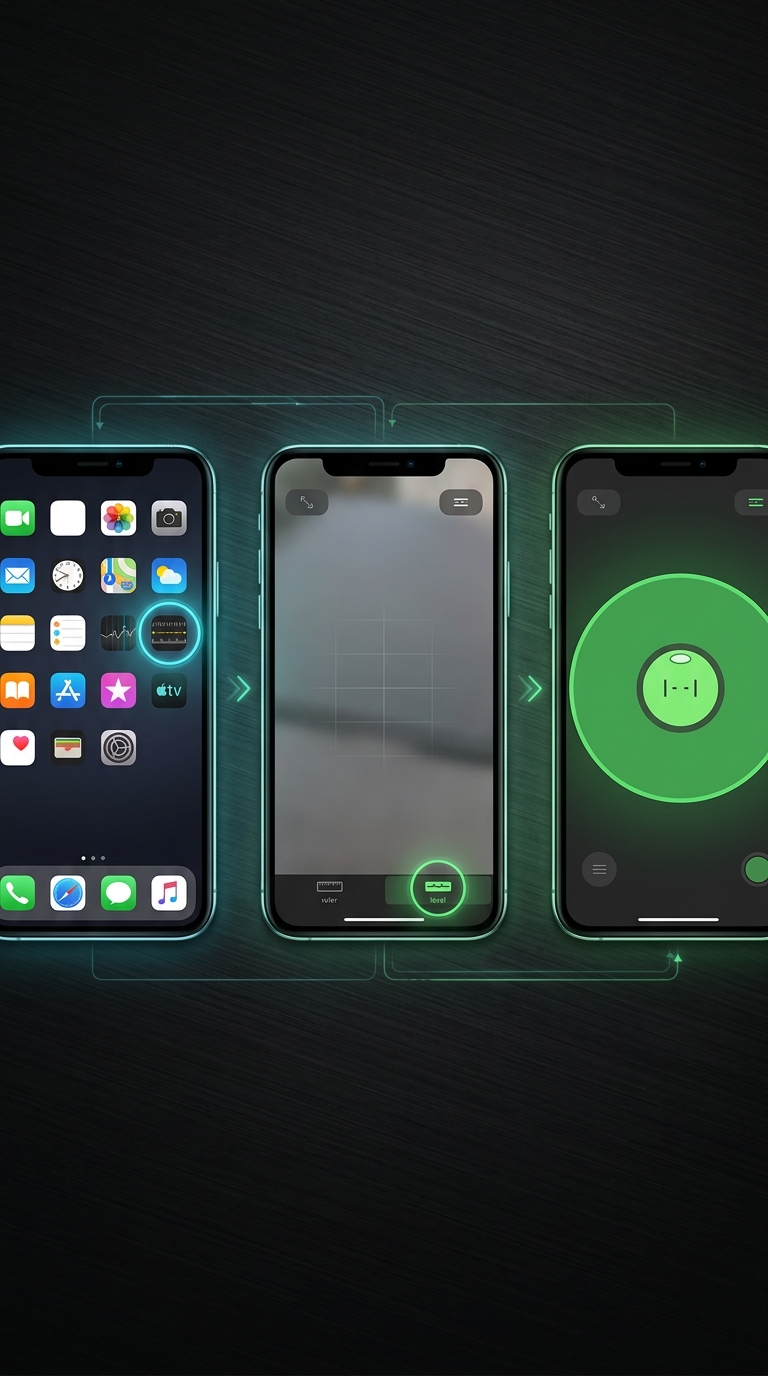
One of the most surprising things about the iPhone's built-in level is how well it hides. Most people assume it would sit prominently in the Utilities folder or appear as a standalone app — but Apple chose to bundle it inside the Measure app, which is easy to overlook.
Here's exactly how to find it:
No setup, no configuration — just open and go.
What Happens When You Use It?
The Level tab uses your iPhone's accelerometer — the same motion sensor that detects screen rotation and counts steps — to calculate tilt. As you tilt the device, the angle reading updates in real time, and the background shifts from dark to bright green the moment you hit 0°.
Vertical use works too:
- Hold the iPhone flat for horizontal surface readings (like a table or shelf)
- Hold it vertically against a wall or edge for plumb readings — useful when checking door frames or positioning artwork
- Tap the screen to lock the current angle as a reference, so you can match it elsewhere
The Critical Thing to Understand
What Apple built here is intentionally minimal. There's no calibration prompt, no unit selector, no way to set a target angle and work toward it. If your iPhone's accelerometer has even a small manufacturing offset — which is more common than you might expect — the reading could be slightly off from ground truth.
For a quick check on whether a nightstand is roughly flat, that's fine. Tiling a floor, mounting a TV bracket, or aligning camera equipment is a different story: those small offsets accumulate into real errors. Knowing how to calibrate your iPhone level tool before relying on it for precision work is something most users never think to do — and it's a step Apple's built-in Measure app doesn't walk you through at all.
Easy to find once you know where to look, but worth understanding its limits before you trust it with work that matters.
What Can't the iPhone's Built-In Level Do?
Once you've used Apple's built-in level a few times, the gaps become obvious. Understanding what the tool is missing helps you decide when "good enough" actually is good enough — and when you need something more capable.
Here's a breakdown of the features absent from the Measure app's Level tab:
- No calibration system. There's no mechanism to correct for sensor offsets in your specific device. Depending on your iPhone model and its age, readings can be consistently off by 0.5° to 1° or more — small on paper, but meaningful across a 6-foot shelf or a tiled wall. A dedicated professional app walks you through a multi-step calibration process that corrects for device-specific errors before you take a measurement.
- No target angle mode. Need to set a surface at exactly 15° — for a camera angle, a ramp, or a display stand? The built-in level gives you a live readout but no way to lock in a target value and work toward it.
- No hold/freeze function. Sometimes you're in an awkward position while measuring and can't easily read the screen at the same moment. A hold function lets you freeze the last reading so you can step back and see it clearly. The built-in tool has no such option.
- No AR camera overlay. Apple's Measure app does use augmented reality for its measurement functions, but the Level tab is a completely separate, purely digital display. You can't see the actual surface beneath your phone while reading the level, which removes a useful visual reference on complex or uneven surfaces. Our guide on how to measure angles with a level tool app shows the difference AR-powered leveling makes in real workflows.
- No audio or haptic feedback. When you're working with both hands — holding a shelf in place, adjusting a tripod, guiding a piece of trim — glancing at your phone screen isn't practical. Professional level apps offer audio tones or haptic pulses that tell you when you've hit level or reached your target angle.
- No multiple measurement units. Degrees are the only option. Depending on your trade or workflow, you might need percentage grade, mm/m, or inch/foot ratios instead.
- No Apple Watch support. Reading levels from your wrist when your hands are entirely full is a genuine advantage — one the native app doesn't offer.
- No Tubular mode for edges and walls. You can hold your iPhone vertically against a wall for a rough plumb reading, but there's no dedicated edge-and-wall interface with a traditional bubble-style visual that's easier to read at a glance.
How Quickly Do These Limitations Show Up?
For casual use — checking whether a picture frame is roughly straight or confirming a table isn't dramatically tilted — most people never hit these limits. You'll likely be satisfied with the built-in tool within the first 30 seconds for simple tasks.
Precision changes everything, though. A professional installation, a photography setup, a construction task with real tolerances: the limitations surface on your very first serious use. A reading that's off by a degree, a screen you can't read while your hands are full, or a target angle you can't set aren't theoretical inconveniences. They cost time and sometimes money.
If you find the built-in tool regularly frustrating, exploring the best level tool apps for iPhone is a natural next step.
Does iPhone Have a Built-In Level? The Verdict

So, does iPhone have a built-in level? Yes — and now you know exactly where to find it, how to use it, and what to realistically expect from it.
The Measure app's Level tab is useful for quick, casual checks. It's always on your phone, requires zero setup, and delivers instant readings. For hanging a picture frame in a pinch or confirming a surface isn't wildly off, it does the job.
Demanding work is a different matter. Consistent accuracy, calibration you can trust, hands-free feedback, or modes built for walls and edges: the built-in level hits its ceiling fast. Apple designed it as a convenience feature, not a precision instrument, and that distinction matters the moment your tolerance drops below a degree.
Here's a quick summary of everything covered in this guide:
- Where to find it: Measure app → Level tab (iOS 12 and later)
- How it works: Accelerometer-based tilt detection with real-time degree display
- What it does well: Instant flat and plumb readings for casual tasks
- What it's missing: Calibration, target angle, hold function, AR overlay, haptic feedback, Apple Watch support
- When to look elsewhere: Any time precision, speed, or professional reliability is non-negotiable
Curious about how the iPhone's sensor accuracy holds up under real-world conditions? Our deep-dive on whether the iPhone level tool is accurate covers the science behind the readings in detail. And if you're ready to move beyond the basics, LevelPro offers everything the built-in level isn't — calibration, AR Camera mode, Target Angle, and an experience built for people who care about getting it right.
The built-in level is a reasonable starting point. Precise work usually deserves a better tool.
LevelPro: Everything the Built-In Level Isn't
Where Apple's built-in level stops, LevelPro begins. Designed for iPhone and iPad, LevelPro offers two dedicated professional modes — Bullseye for flat surfaces and Tubular for edges and walls — paired with an intelligent 2-step calibration system that corrects for your specific device's sensor offsets, something the native Measure app can't do. AR Camera mode lets you see the real surface beneath your phone while measuring, removing guesswork entirely. Set a Target Angle with subtle audio and haptic feedback to hit exact measurements hands-free, or use the Hold function to freeze a reading when your position is awkward. Multiple measurement units are supported, and if you wear an Apple Watch, readings stream directly to your wrist in real time. Built with a dark design and neon accents, LevelPro is the instrument architects, engineers, photographers, and builders reach for when the job demands more than the basics.
The Built-In Tool Feeling Limited?
If the iPhone's native level isn't cutting it for your work, try LevelPro free and see what calibration, AR mode, and professional feedback actually change on your next project.
Frequently Asked Questions
Where is the built-in level on iPhone?
Open the Measure app (pre-installed on iOS 12+), then tap the 'Level' tab at the bottom of the screen. Place your iPhone on any surface and it'll instantly display the tilt angle in degrees.
Does the iPhone built-in level work without internet?
Yes. The built-in level — and most dedicated level apps — work entirely offline because they rely on the iPhone's internal accelerometer and gyroscope, not a network connection.
Is the iPhone's built-in level accurate enough for professional use?
For casual tasks it's fine, but it lacks calibration, so manufacturing tolerances in the device itself can introduce small errors. Professionals benefit from apps that include a multi-step calibration system to correct for device-specific offsets.
Can I use my iPhone as a level for walls and edges?
Yes. Hold the iPhone vertically against a wall or edge and the level will switch to a vertical reading. Dedicated apps often call this 'Tubular' mode and display it with a traditional bubble-style interface for easier reading.
What features does the built-in iPhone level NOT have?
Apple's built-in level is missing calibration, a hold/freeze function, target angle mode, AR camera overlay, multiple measurement units, Apple Watch support, and audio or haptic feedback — features commonly found in professional level apps.
Does iPhone level work on iPad too?
Yes. The Measure app with the Level tab is available on iPad as well as iPhone, provided the device runs iOS/iPadOS 12 or later and has the required motion sensors.