
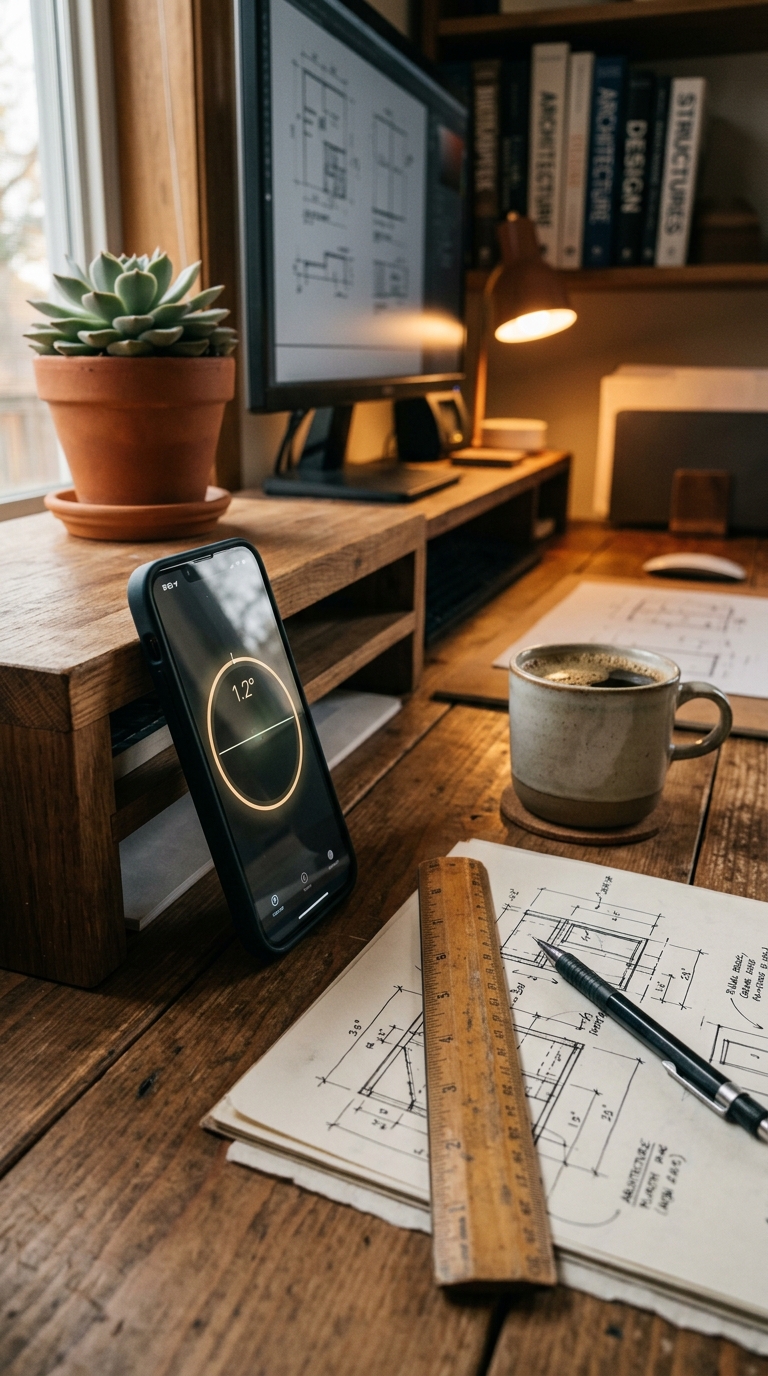
To measure angle with a level tool app, open the app, switch to Tubular mode, place your iPhone against the surface, and read the angle displayed in real time. Apps like LevelPro also let you set a target angle and get haptic feedback when you hit it.
Measuring an angle with a level tool app is straightforward once you know which mode to use. In LevelPro, switch to Tubular mode for edges and tilted surfaces, then hold your iPhone against the surface — the app instantly displays the angle in your chosen unit. For greater precision, activate Target Angle mode and set an exact value; you'll get audio and haptic feedback the moment the surface matches your target. Calibrating the app beforehand using the built-in 2-step calibration system ensures every reading is accurate and reliable.
How to Measure Angle with a Level Tool App: What You Need to Know
Whether you're hanging a shelf, cutting a precise miter, setting up a camera rig, or checking the pitch of a roof, getting the angle right makes all the difference. No protractor, inclinometer, or expensive specialty equipment required. Your iPhone is already capable of delivering professional-grade angle measurements — you just need the right app.
Learning how to measure angle with a level tool app is easier than most people expect. Within a minute of opening the app, you can have a live, accurate angle reading on your screen. A tool like LevelPro gives you more than a basic digital level — it's a full set of professional modes, calibration tools, and smart feedback systems designed for people who take precision seriously.
This step-by-step guide covers:
- Choosing the right mode for the surface you're measuring
- Calibrating your app so your readings are always reliable
- Using Target Angle mode to hit a specific value with audio and haptic feedback
- Reading and saving your results efficiently in the field
By the end of this tutorial, you'll have a clear, repeatable workflow for measuring any angle on any surface — using nothing but your iPhone and a well-designed app.
Step 1: Download, Install, and Calibrate Your Level Tool App
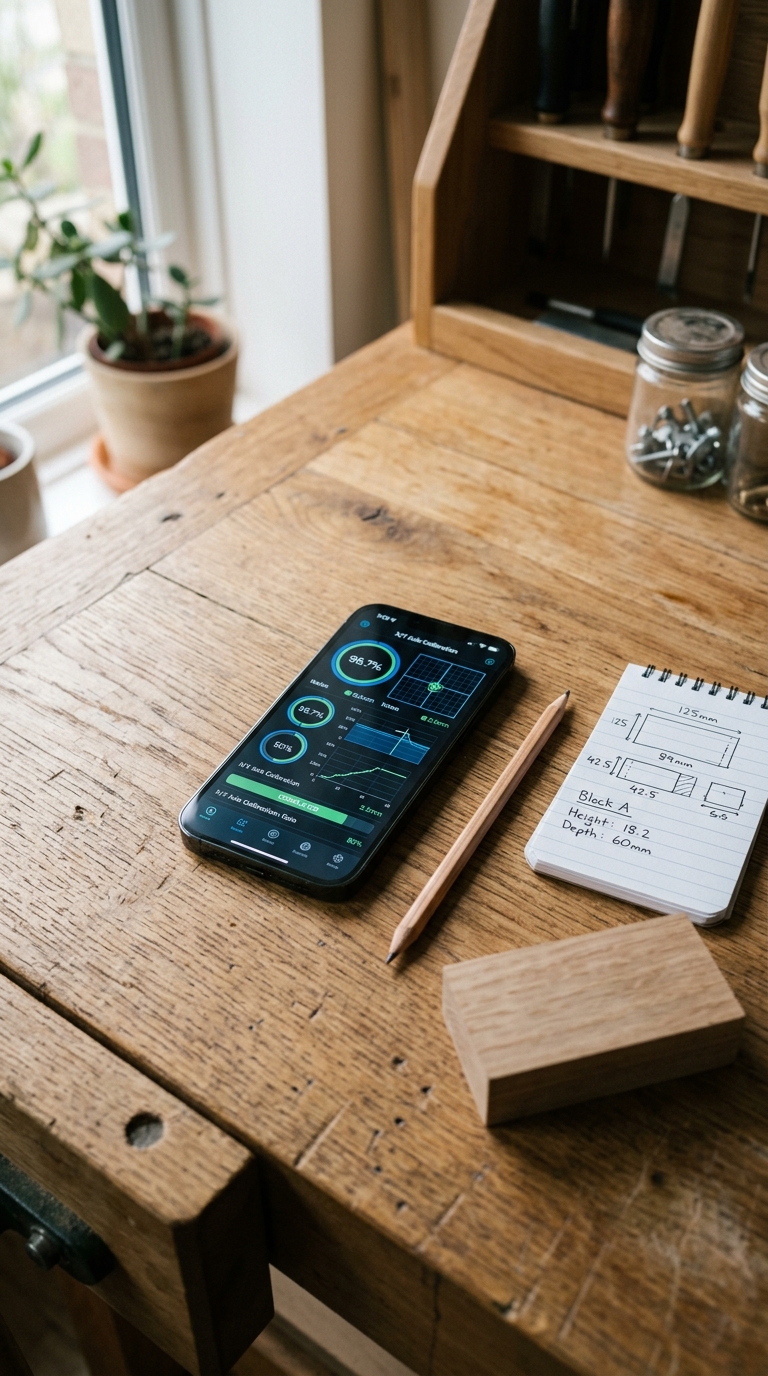
Before you can measure a single angle, make sure your app is installed correctly and your iPhone's sensors are properly calibrated. Skipping this step is the most common reason people get inaccurate readings — and it only takes about a minute to do right.
Download and Open LevelPro
Head to the App Store and search for LevelPro. Once installed, open the app and activate your subscription to unlock all professional features. You'll land on a dark-themed interface with two primary mode options: Bullseye and Tubular.
- Bullseye mode — designed for flat, horizontal surfaces (countertops, tables, camera platforms)
- Tubular mode — designed for edges, slopes, and inclined surfaces where you need a precise angle reading
For most angle measurements, Tubular mode is what you want. Tap it to activate before moving on.
Calibrate Before You Measure
Most people skip this step — which is exactly why their readings drift. Even a brand-new iPhone can have small sensor offsets that introduce a degree or two of error. LevelPro's 2-step calibration system eliminates that drift.
Here's how to run it:
For a deeper walkthrough, the guide on how to calibrate your iPhone level tool covers every step in detail.
Set Your Preferred Units
Before placing the device on any surface, take a moment to configure your measurement units. LevelPro supports degrees, percent slope, and millimeters per meter, so you can work in whatever unit your project or trade requires. Tap the units selector and choose your preference.
Quick Setup Checklist:
- ✅ App downloaded and subscription active
- ✅ Tubular mode selected
- ✅ 2-step calibration completed
- ✅ Preferred measurement unit set
With setup done, your tool is accurate and you're ready to start measuring. If you're new to digital levels in general, the step-by-step guide on how to use a spirit level app is a useful reference alongside this tutorial.
Step 2: Place Your iPhone and Take the Angle Reading
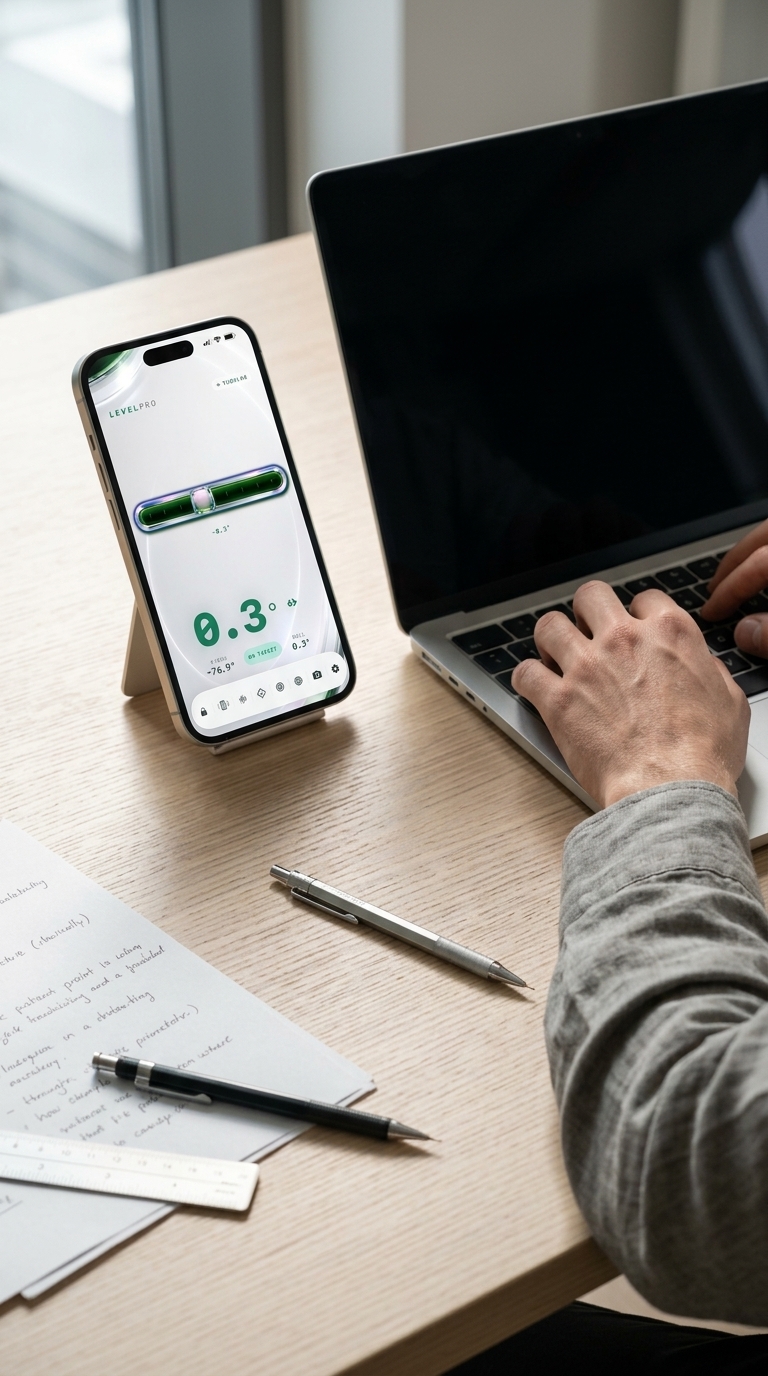
With your app calibrated and units set, it's time to measure. Here's how to get a clean, accurate reading every time.
Position Your iPhone Correctly
How you hold or place your iPhone directly affects accuracy. Follow these positioning rules depending on what you're measuring:
- Edges and tilted surfaces (ramps, cuts, shelves, studs): Hold the long edge of your iPhone flat against the surface. Keep steady contact along the full length of the device.
- Pipes and cylindrical objects: Rest the iPhone against the side of the object, keeping it as flush as possible.
- Large flat panels (doors, plywood, drywall): Place the iPhone vertically against the face of the panel and hold it still.
Avoid pressing just one corner against the surface — even a millimeter of gap can shift your reading. More contact area means a more stable, accurate result.
Read the Live Angle Display
As soon as your iPhone touches the surface, LevelPro's Tubular mode begins displaying the angle in real time. You'll see the number updating as the surface or your hand moves. Once the reading stabilizes:
The Hold function is especially useful in tight spaces or awkward positions. Tap it once and your reading locks on screen, so you can step back and check it without losing the measurement.
Using Target Angle Mode for Precision Work
When your project requires hitting a specific angle — say, 45° for a miter cut, 30° for a drainage slope, or 15° for a camera tilt — Target Angle mode is worth using. Here's how:
You don't have to stare at the screen while adjusting — your hands and ears do the work. That's particularly useful on job sites where your attention is split across multiple tasks.
Tips for More Accurate Readings
- Work on a stable surface when possible — vibration from nearby machinery or footsteps can introduce momentary spikes in the sensor reading
- Keep your iPhone case in mind — very thick or uneven cases can create a physical gap between your device and the surface; remove the case if you suspect interference
- Take multiple readings — for critical cuts or installations, measure twice in the same spot to confirm consistency
- Use AR Camera mode for context — LevelPro's AR Camera shows the real-world surface beneath your iPhone, making it easier to align the device on complex or irregular materials
If you need to verify readings against a physical surface, the guide on how to check if a surface is level covers methods that pair well with a digital level app. And if you plan on using LevelPro for other leveling tasks beyond angle measurement, the best level tool app for iPhone breakdown explains why a multi-mode app outperforms single-purpose alternatives.
You Now Know How to Measure Angle with a Level Tool App
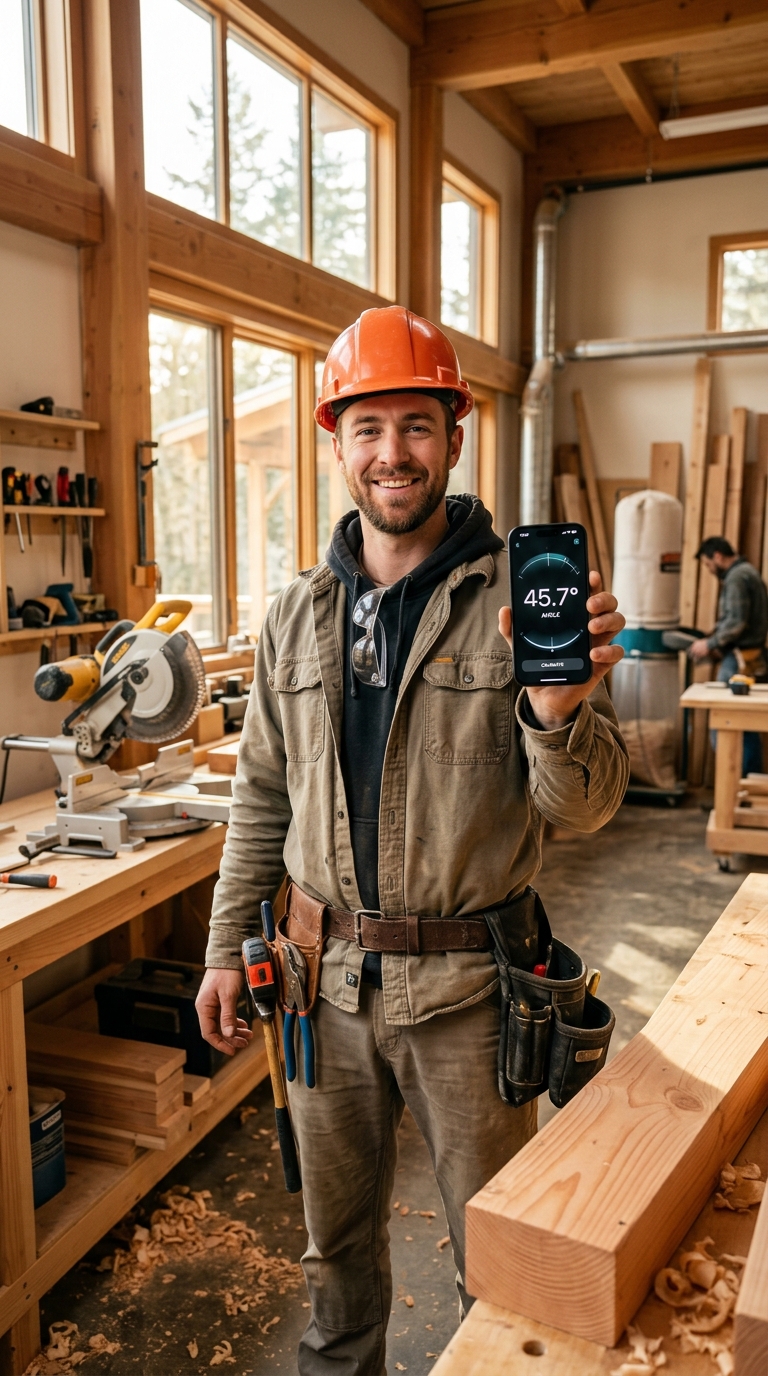
Measuring angles accurately no longer requires expensive instruments or a bag full of specialty tools. As this guide has shown, how to measure angle with a level tool app comes down to three straightforward steps: calibrate your app, select the right mode for your surface, and let the real-time readings do the work.
With LevelPro on your iPhone, you have a professional-grade angle measurement tool that fits in your pocket. Whether you're setting a 45° miter, verifying a roof pitch, leveling a camera, or checking a drainage slope, the workflow is the same:
- Calibrate once using the 2-step system so every reading is trustworthy
- Switch to Tubular mode for edges and sloped surfaces
- Activate Target Angle mode when you need to hit an exact value
- Use the Hold function to freeze readings when access is difficult
- Read from your Apple Watch when your hands are full
Half a degree is often the difference between a job done right and one that needs to be redone — a gap a professional level app closes easily. That's why builders, architects, photographers, and designers have increasingly moved away from physical tools toward digital alternatives.
To explore more use cases, the guide on how to use a bubble level on iPhone covers everything from basic leveling tasks to more advanced applications. Working with picture frames, mirrors, or wall art? The tutorial on how to level a picture frame with your phone shows how to apply these same skills to one of the most common household tasks.
You already have the hardware. All it takes is the right app — and now you know exactly how to use it.
LevelPro: A Professional Angle Measurement Tool for iPhone
LevelPro is built for people who need accurate, reliable angle measurements on the go. Tubular mode is purpose-built for measuring angles on edges and sloped surfaces, while Bullseye mode handles flat surface leveling. The 2-step calibration system eliminates sensor error so your readings stay precise job after job. When you need to hit a specific angle — 45° for a miter cut or 30° for a ramp, for example — Target Angle mode delivers haptic and audio feedback the instant you reach it. The Hold function lets you freeze a reading when you can't keep your eyes on the screen, and AR Camera mode shows the real surface beneath your device for added context. Apple Watch support means you can read angles directly from your wrist, and multiple unit options let the app adapt to your workflow. LevelPro is available via subscription, unlocking every professional feature in one dark-themed interface.
Start Measuring Angles with LevelPro
Download LevelPro for iPhone, activate your subscription, and start getting precise angle measurements in seconds — whether you're on a job site, in a studio, or hanging something at home. Your first calibration takes under a minute, and from there, every reading is ready when you are.
Frequently Asked Questions
Can I measure any angle with a level tool app?
Yes. A level tool app like LevelPro can measure angles from 0° to 360° depending on orientation and mode. Tubular mode is best for edges and inclined surfaces, while Bullseye mode is ideal for flat, horizontal surfaces.
How accurate is an iPhone level tool app for measuring angles?
iPhone-based level apps can be very accurate — often within ±0.1° — especially when properly calibrated. LevelPro includes a 2-step calibration system that corrects sensor drift, making it reliable for professional use.
What is Target Angle mode in a level app?
Target Angle mode lets you input a specific angle you want to achieve. The app then guides you in real time with visual indicators and triggers audio or haptic feedback the moment the surface reaches your desired angle.
Do I need to calibrate my level app before measuring angles?
Yes, calibration is strongly recommended. Even small sensor offsets in your iPhone can cause inaccurate readings. LevelPro's 2-step calibration corrects these offsets so every angle measurement is as precise as possible.
Can I measure angles on an Apple Watch using a level tool app?
Yes, if the app supports it. LevelPro has an Apple Watch companion that displays real-time angle measurements directly on your wrist, which is useful when your hands are busy holding a workpiece.
What units can I use to measure angles in a level app?
Most professional level apps, including LevelPro, support multiple measurement units such as degrees, percent slope, and millimeters per meter, so you can work in whatever unit your project requires.