

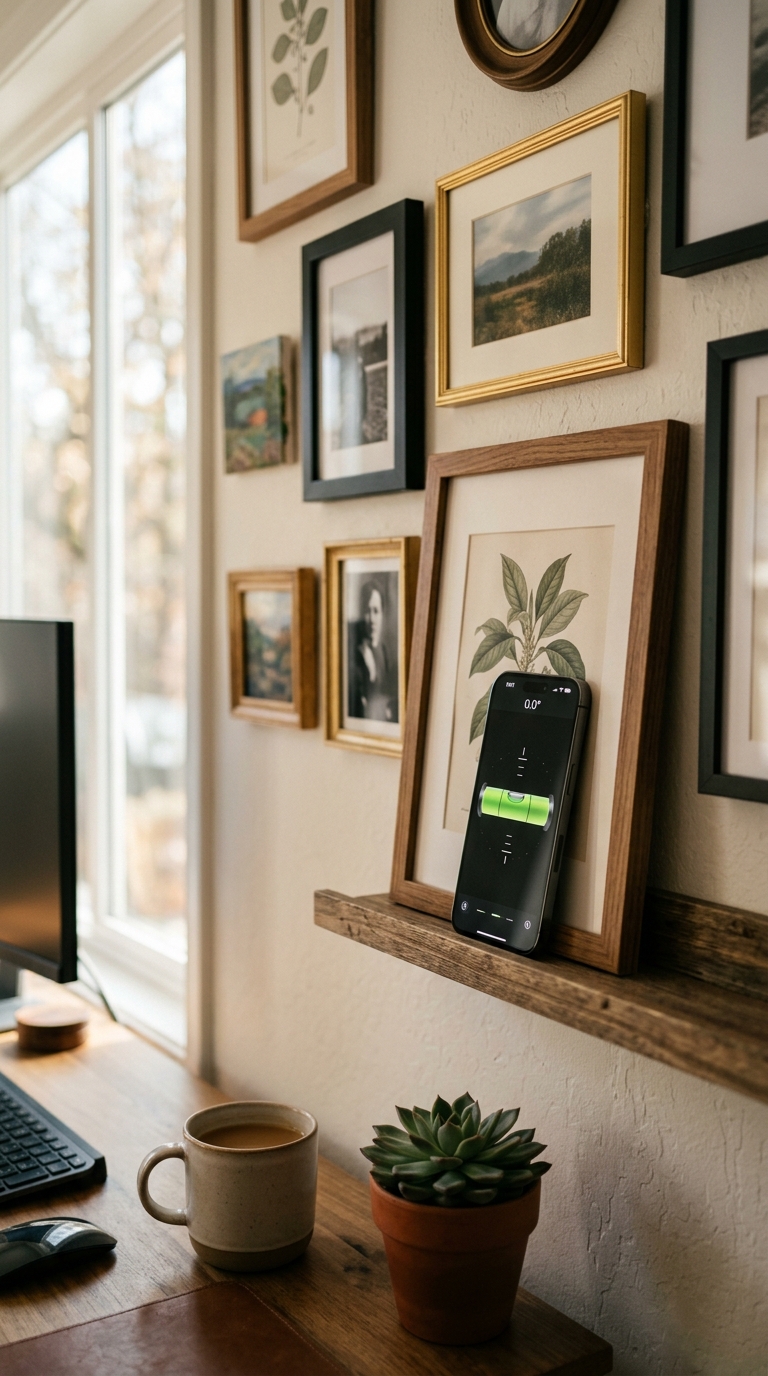
To level a picture frame with your phone, place your iPhone flat against the frame's edge, open a spirit level app like LevelPro, and adjust the frame until the bubble or angle reading hits zero. No separate tools needed.
Leveling a picture frame with your phone is straightforward and precise. Launch a spirit level app on your iPhone, switch to Tubular mode to measure along the frame's horizontal or vertical edge, and slowly tilt the frame until the reading reaches 0.0°. Apps like LevelPro also offer haptic and audio feedback so you feel the moment the frame is perfectly level — even when your hands are full. Once locked in, mark your nail position or use the Hold function to freeze the reading before stepping back.
Why Your Phone Is the Only Level You Need for Hanging Frames
There's a particular kind of frustration that comes with stepping back from a freshly hung picture frame, only to realize it's tilted just enough to bother you every time you walk past it. You adjust, step back, adjust again. The frame wins.
Good news: if you've got an iPhone in your pocket, you already own a precise leveling tool. Learning how to level a picture frame with your phone takes less than five minutes, and the results beat eyeballing it or wrestling with a traditional bubble level while balancing the frame with your other hand.
Modern iPhones pack highly sensitive accelerometers and gyroscopes. A dedicated spirit level app like LevelPro reads directly from this hardware, delivering degree-accurate readings with real-time haptic and audio feedback, so you feel the moment your frame hits level even when your hands are full.
In this guide, you'll learn exactly how to use your phone to hang a picture frame straight every time, including:
- Which app mode to use for checking a frame's horizontal edge
- How to hold your phone against the frame for the most accurate reading
- How to calibrate your phone so your zero is truly zero
- Tips for awkward positions, heavy frames, and tight spaces
No toolbox required. Just your iPhone, a good app, and this step-by-step walkthrough.
Step 1: Download a Spirit Level App and Calibrate Your Phone
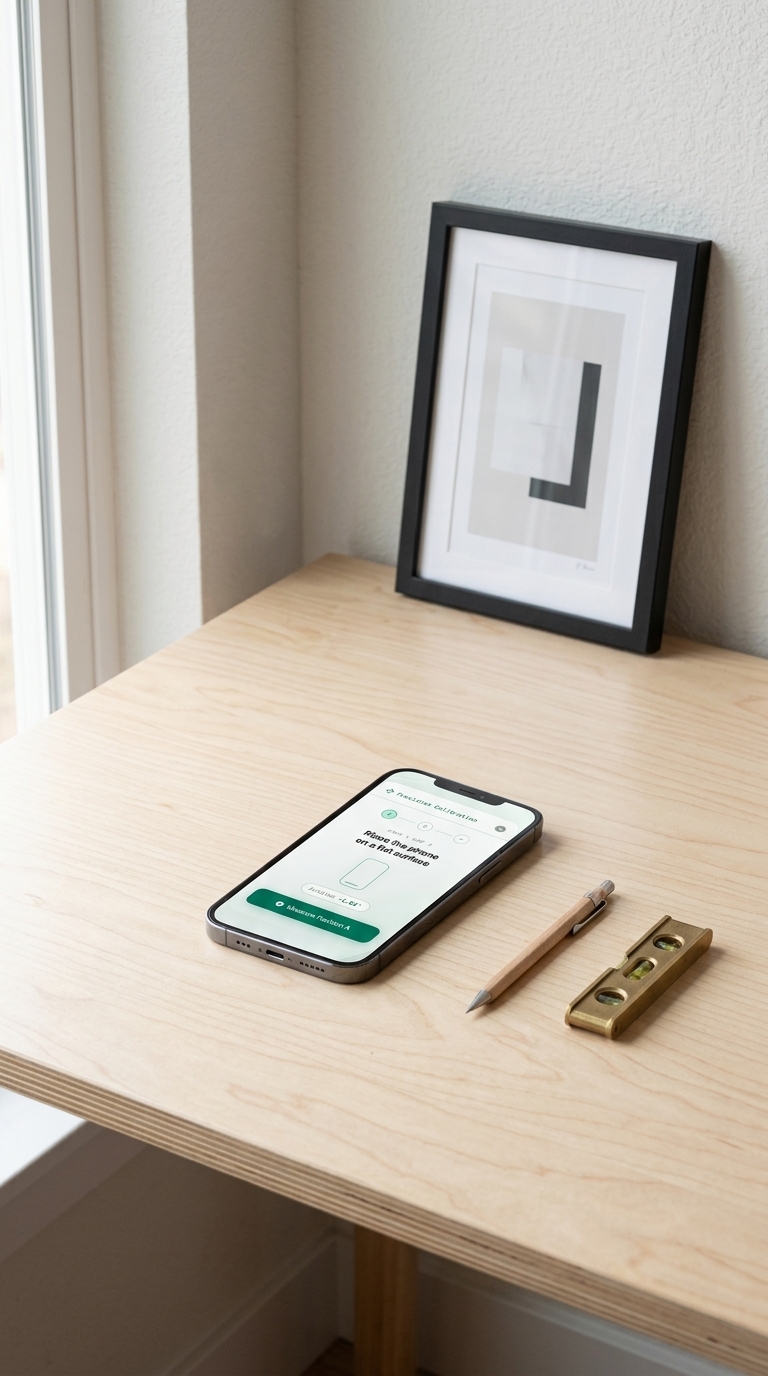
Before you touch your picture frame, spend two minutes on setup. Most people skip this step, and it's exactly why their frames still end up crooked.
What you need:
- Your iPhone (any model with an accelerometer, essentially any iPhone made in the last decade)
- A spirit level app installed and ready to open
- The picture frame you plan to hang
- A pencil for marking nail positions (optional but helpful)
Choose the Right App
The iPhone's built-in Measure app includes a basic level, but it lacks precision controls and feedback for reliable results. For the best experience when learning how to level a picture frame with your phone, download LevelPro, a professional-grade spirit level designed for accuracy-critical tasks like this one.
Not sure which app to use? The best level app for hanging pictures guide breaks down what to look for before you install anything.
Calibrate Before You Measure
This step matters more than most people realise. Even a brand-new iPhone can carry a small sensor offset, meaning its "zero" is actually 0.3° or 0.5° off true level. That's invisible to the eye but enough to make your frame visibly crooked once it's on the wall.
LevelPro includes a 2-step intelligent calibration system that corrects for this drift:
For a full walkthrough, check the detailed guide on how to calibrate your iPhone level tool before continuing.
Set Up Your Workspace
- Clear the wall area around where the frame will hang
- Have your nail or picture hook already in place, or marked with a pencil
- Make sure the frame's hanging wire or bracket is properly centered on the back
- Keep your phone's screen brightness up so you can read the angle clearly
With your app installed, your phone calibrated, and your workspace ready, you're set up for a clean, accurate result.
Step 2: Place Your Phone Against the Frame and Read the Level
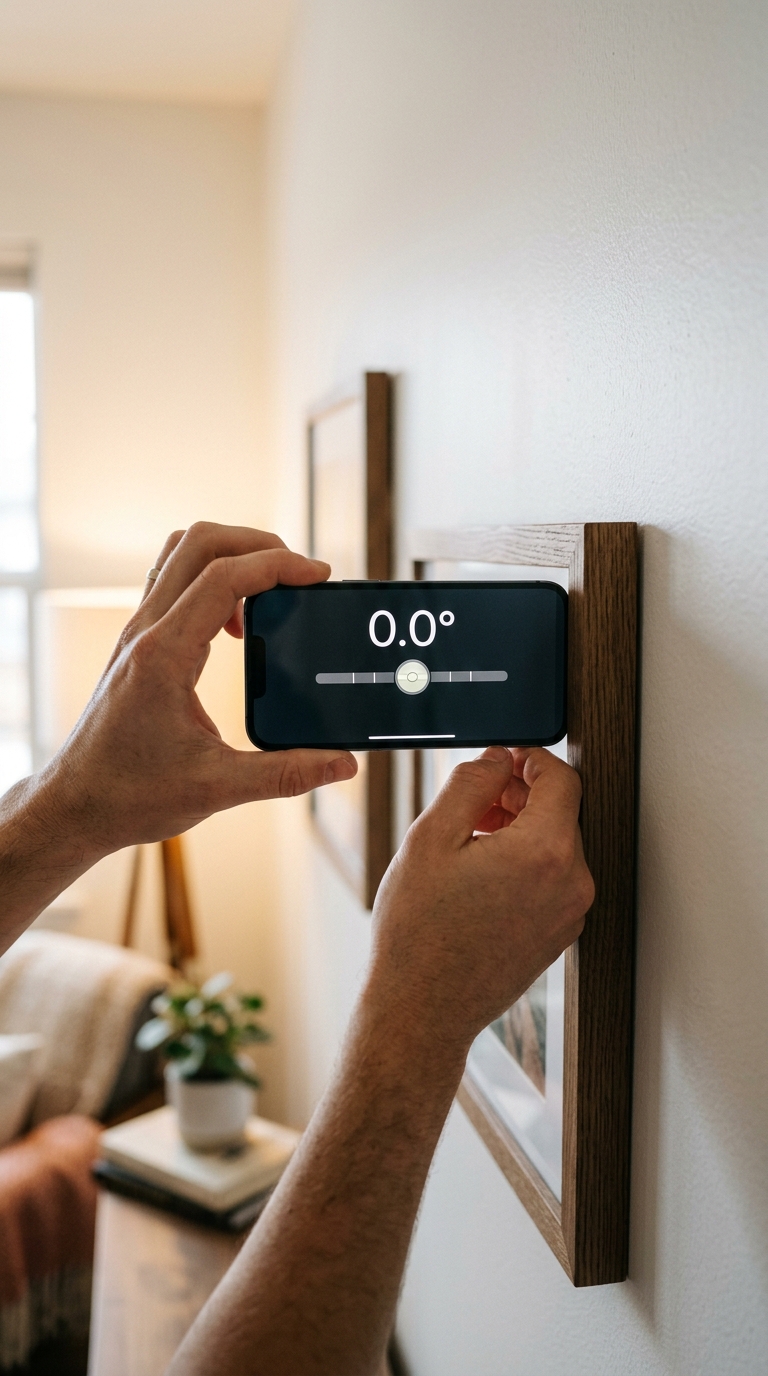
With your app calibrated and your frame roughly in position, it's time to take your first reading. Once you've done it once, it becomes second nature.
Switch to Tubular Mode
Open LevelPro and switch to Tubular mode. Unlike Bullseye mode, which checks a flat surface in all directions simultaneously, Tubular mode measures tilt along a single axis — the right choice when you want to level a picture frame with your phone along its top or side edge.
You'll see a real-time angle readout on screen. Your goal is to bring that number to 0.0°.
How to Hold Your Phone Against the Frame
Positioning matters here. Follow these steps for a reliable, consistent reading:
Fine-Tune Until You Hit Zero
Slowly rotate the frame until the reading approaches 0.0°. As you get close, LevelPro's haptic and audio feedback kicks in — you'll feel a subtle vibration and hear a tone the moment you land on true level. That's especially useful when your hands are occupied holding the frame and you can't easily glance at the screen.
Tips for a cleaner result:
- Make small adjustments — a millimetre of movement at the bottom corner translates to a meaningful angle change at the sensor level
- Check both the top and side edges of the frame if you want to confirm it's square to the wall, not just level horizontally
- Use the Hold function to freeze the angle reading before you step back, locking the number on screen so you can check your result without disturbing the frame's position
Mark Your Nail Position
Once the frame reads 0.0° and you're happy with its position, lightly mark the wall at the top corners of the frame with a pencil, or mark the nail hole directly. That gives you a reference point before you remove the frame to hammer in your hook.
If you're getting comfortable with how the app's modes behave in practice, the step-by-step guide on how to use a spirit level app covers the subtleties of getting consistent readings in different orientations.
At this stage, you've done the precision work. Your frame is level, your position is marked, and you're ready to make it permanent.
Your Frames Are Straight — Now Keep Them That Way
Leveling a picture frame with your phone is one of those small wins that genuinely improves your living space. Once you've felt LevelPro's haptic feedback confirm 0.0°, you'll stop guessing.
Here's a quick recap of everything covered:
- Downloaded and set up LevelPro, choosing a dedicated app over the basic built-in alternative
- Calibrated your iPhone so your zero reading is genuinely zero, not just close enough
- Used Tubular mode to measure the frame's horizontal edge in real time, adjusting until you hit 0.0°
- Marked your nail position and locked in your reading with the Hold function before stepping back
The whole process takes under five minutes once you've done it once. That's less time than it takes to find a traditional bubble level, hunt for batteries, and discover the vial is cracked.
Beyond picture frames, the same technique applies to shelves, mirrors, and gallery wall arrangements. Knowing how to level a picture frame with your phone is really knowing how to level anything, quickly, accurately, and with one tool that's already in your pocket.
Want to go further? The step-by-step guide on how to check if a surface is level takes a broader look at leveling techniques across different surfaces. And if you're curious about what else your iPhone's sensors can do, the guide to using a bubble level on iPhone covers every available method in depth.
Your walls deserve precision. Your phone can deliver it.
LevelPro: The iPhone Spirit Level Built for Precision Work
LevelPro turns your iPhone into a professional-grade spirit level, and it's well suited for tasks like leveling picture frames. Tubular mode reads tilt along a single axis, making it practical for checking a frame's top edge, while Bullseye mode confirms a surface is balanced in all directions. The 2-step intelligent calibration system eliminates sensor drift so your zero is truly zero. When your hands are positioned awkwardly behind a heavy frame, the Hold function freezes the on-screen reading so you can check it without moving. Haptic and audio feedback signal the exact moment you hit your target angle, with no need to keep glancing at the screen. For those who want to see what's happening at wall level, the AR Camera mode overlays measurements on a live camera view. LevelPro is available for iPhone and iPad with an active subscription.
Ready to Hang Every Frame Perfectly Straight?
Download LevelPro from the App Store and use it the next time you hang a picture. Calibration takes under a minute. Your walls will thank you.
Frequently Asked Questions
Can I really use my phone to level a picture frame accurately?
Yes. Modern iPhones contain highly sensitive accelerometers and gyroscopes that can measure tilt to within a fraction of a degree, more than accurate enough for hanging picture frames. A dedicated app like LevelPro refines this further with a built-in calibration system.
What part of my phone should touch the picture frame?
Place the flat edge (side) of your iPhone against the top or side edge of the frame. That lets the phone's sensors read the frame's angle directly. Make sure the frame and your phone are both flush against the wall for the most accurate result.
What's the difference between Bullseye mode and Tubular mode for leveling frames?
Bullseye mode checks whether a flat surface is level in all directions at once, while Tubular mode measures tilt along a single axis — ideal for checking a picture frame's horizontal or vertical edge. For frames, Tubular mode is the right choice.
What if my phone's level isn't reading zero on a surface I know is flat?
Your phone needs calibration. LevelPro includes a 2-step intelligent calibration system that corrects for any sensor offset, ensuring your readings are accurate every time.
Do I need a subscription to use LevelPro for leveling picture frames?
Yes. LevelPro works with an active subscription, which unlocks all features including Tubular mode, Bullseye mode, calibration, haptic feedback, and the AR Camera mode.