
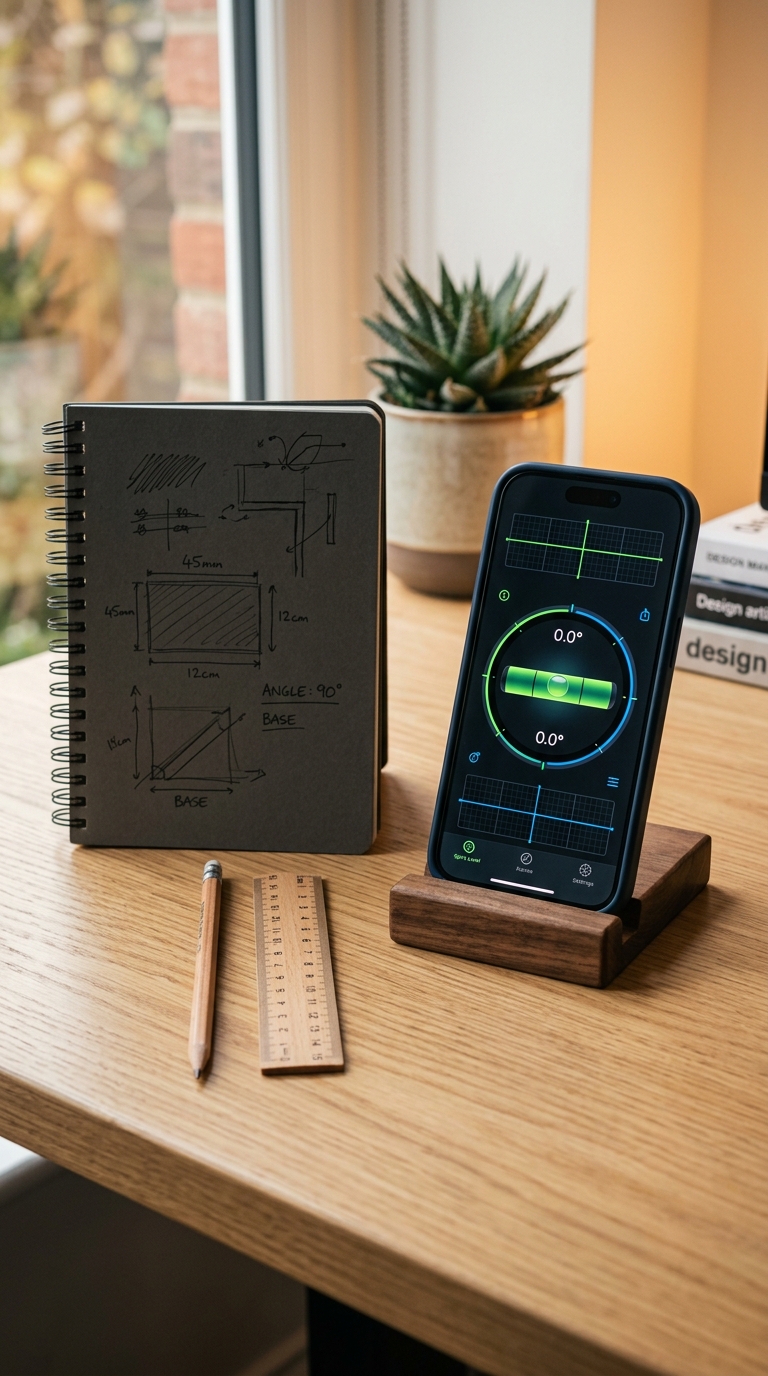
To use a spirit level app, open the app, calibrate it on a known flat surface, then place your device on the object you want to measure and read the angle or bubble position in real time.
Using a spirit level app correctly takes just a few minutes to set up. Start by downloading a dedicated app like LevelPro, run its built-in calibration so your iPhone's sensors are zeroed to true level, then choose between Bullseye mode (for flat surfaces) or Tubular mode (for edges and walls). Place your phone on the surface, let the reading stabilize, and use the Hold function if you need to capture the measurement before moving the device. For precise work, always calibrate on a surface you trust, and check the angle in multiple orientations.
Why Using a Spirit Level App Correctly Makes All the Difference
A spirit level app sounds simple enough — open it, point your phone at something, and check if it's straight. But if you've ever hung a shelf that looked perfectly level on screen only to find it visibly tilted once you step back, you already know that how you use it matters just as much as which app you use.
Learning to use a spirit level app properly takes less than five minutes, and it can save you from frustration, wasted materials, and re-done work. Whether you're a weekend DIYer leveling a picture frame or a professional aligning equipment on a job site, the difference between a rough reading and a truly accurate one comes down to a few key habits.
In this step-by-step guide, you'll learn:
- How to set up and calibrate your spirit level app so your iPhone's sensors are zeroed to true level
- Which measurement mode to use for different surfaces — flat tables, walls, edges, and slopes
- How to capture and hold readings when you're in an awkward position
- Pro tips for getting consistent, repeatable accuracy every time
We'll be using LevelPro as our reference app throughout this guide. It's a premium spirit level app for iPhone built around precision, with an intelligent 2-step calibration system, two professional measurement modes, AR Camera view, and a dark interface that's easy to read in any lighting condition. For a tool that works like a professional instrument rather than a rough estimator, LevelPro is a solid starting point.
Let's get into it.
Step 1: Download and Set Up Your Spirit Level App
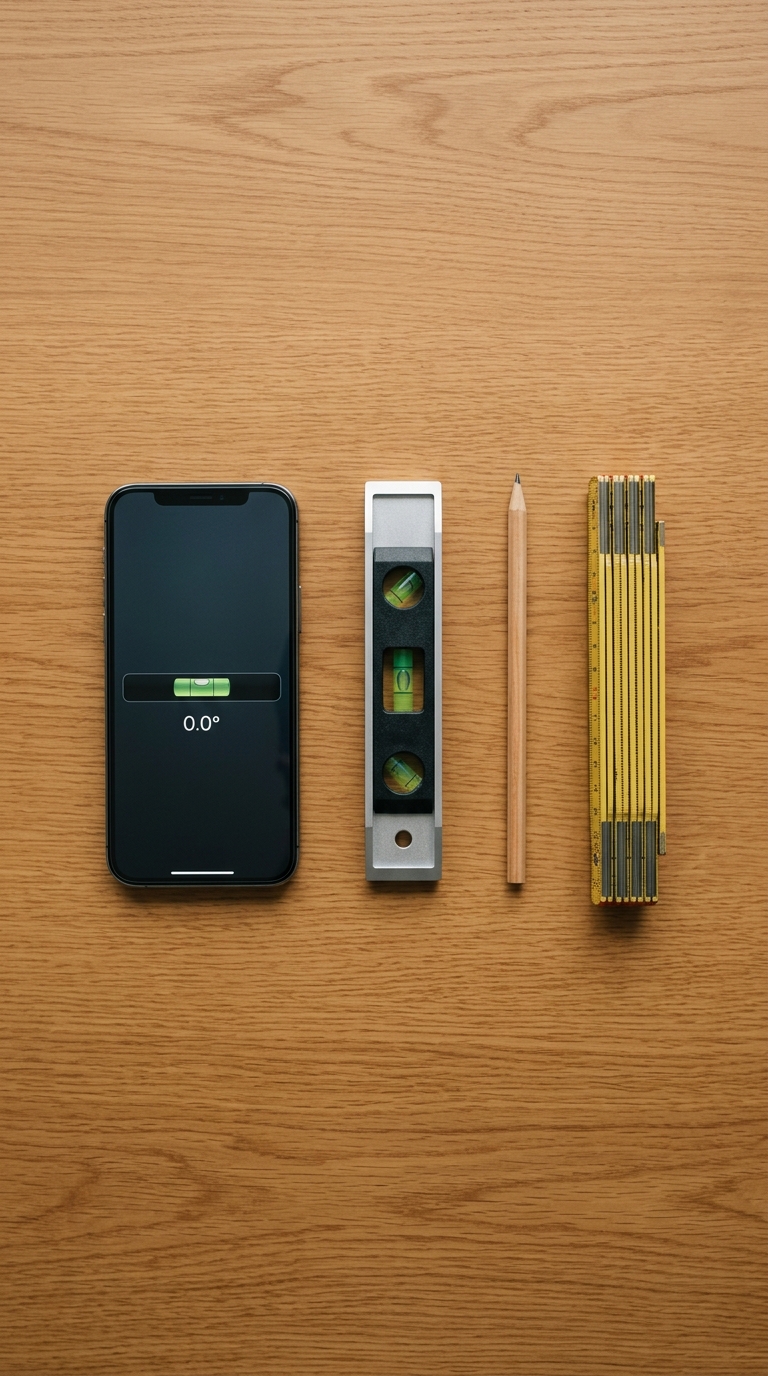
Before you can take a single measurement, you need the right app installed and ready to go. This step is straightforward, but a few small decisions here will shape the quality of every reading you take afterward.
Choose the Right App
Not all level apps are built to the same standard. The iPhone's built-in Measure app includes a basic level function, but it lacks the calibration controls and professional modes you need for accurate, repeatable work. If you want to understand how to use bubble level on iPhone across every available method — including dedicated apps — it's worth reading up before you commit to a tool.
For this guide, we're using LevelPro, which is purpose-built as a precision instrument.
Download LevelPro from the App Store
Search for LevelPro in the App Store or use the direct link from leveltool.app. Once installed, open the app and start a subscription to unlock all features, including the 2-step calibration system, both professional measurement modes, and the AR Camera view.
Prepare Your Workspace
Before you start measuring, spend thirty seconds on preparation:
- Clear the surface you're planning to measure — dust, debris, or small objects underneath your phone will throw off your reading
- Clean your phone's back glass if it's dusty or scratched, since even a thin layer of grit can tilt the device slightly
- Remove any thick phone case if it has an uneven back texture, as this can introduce small but meaningful tilt errors
- Make sure your screen brightness is adequate — LevelPro's dark interface with neon accents is easy to read, but in harsh sunlight you'll want full brightness
Know What You're About to Measure
Take a moment to identify the surface or object you're working with:
- Is this a flat horizontal surface (table, floor, countertop)? → You'll use Bullseye mode
- Is this an edge, wall, or vertical frame? → You'll use Tubular mode
- Are you targeting a specific angle or slope rather than true level? → You'll use Target Angle mode
Not sure which mode to reach for? Our roundup of the best spirit level app for iPhone explains the practical differences in more depth.
Once you've downloaded the app, set up your subscription, and assessed your surface, you're ready for the most important step in the entire process: calibration.
Step 2: Calibrate Your App for Accurate Readings
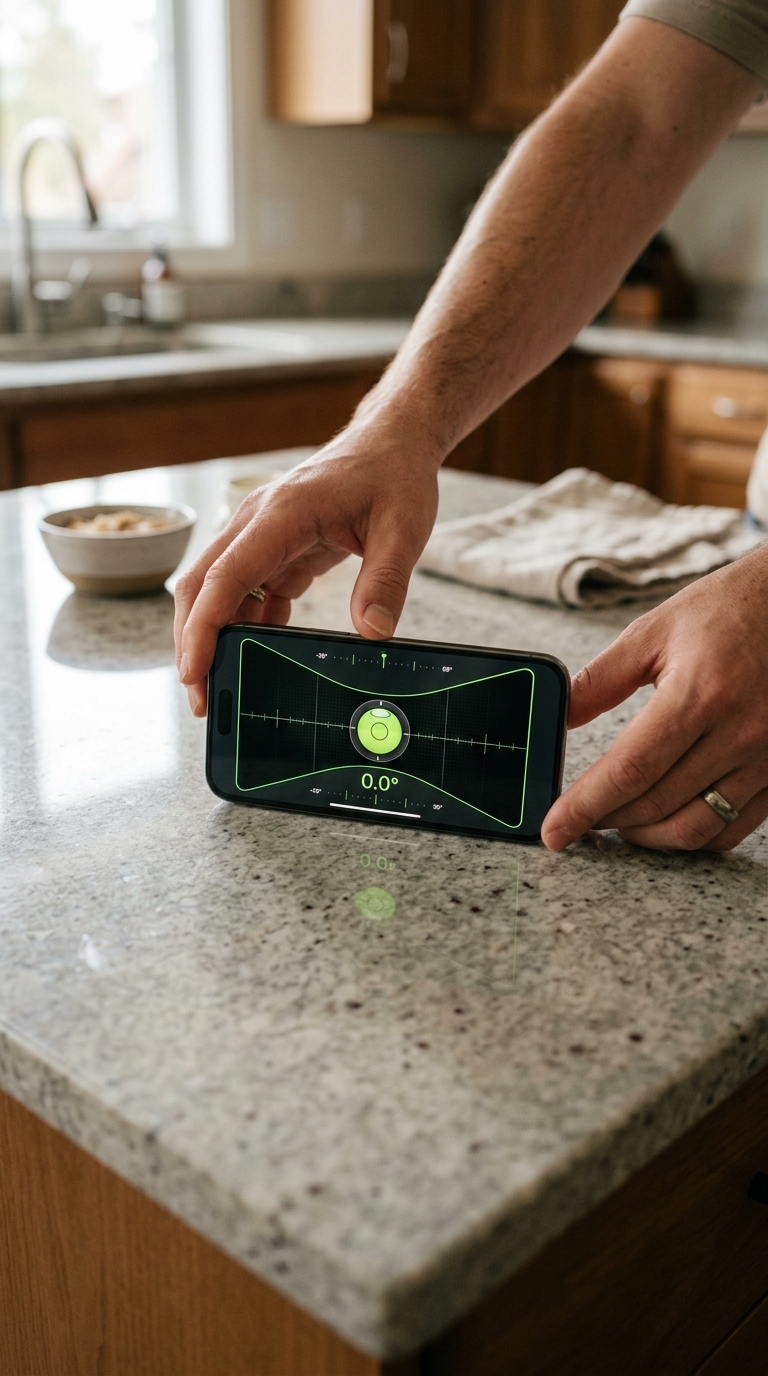
Calibration is the single most important step when learning how to use a spirit level app correctly. Without it, your iPhone's accelerometer may carry a small factory offset, and even a fraction of a degree of error can mean a shelf that looks straight but clearly isn't, or a camera mount that drifts just enough to ruin a shot.
Calibration in LevelPro takes under a minute and only needs to be repeated if you switch devices or notice your readings drifting over time.
LevelPro's Intelligent 2-Step Calibration System
LevelPro uses a two-position calibration method that physically cancels out sensor bias, rather than just applying a software offset. Here's exactly how to run it:
Step 1 — Place your device on a trusted flat surface
Find a surface you're confident is already level. A granite countertop, a glass table, or a kitchen worktop you've previously verified all work well here. The more trusted the surface, the more reliable your calibration will be.
- Open LevelPro and navigate to the Calibration screen (accessible from the settings or the main menu)
- Place your iPhone flat on the surface, screen facing up
- Hold it completely still and tap Capture Position 1 when prompted
Step 2 — Rotate and capture the second position
- Rotate your iPhone 180 degrees on the same surface, keeping it flat and just spinning it so the top of the phone now faces the opposite direction
- Hold it still again and tap Capture Position 2
By measuring the same surface from two opposing orientations, LevelPro mathematically eliminates any tilt error introduced by the surface itself. The result is a sensor zero-point that reflects true level, not just the level of whatever surface you happened to place it on.
What Happens If You Skip Calibration?
Skipping calibration doesn't mean the app won't work — it means you're relying entirely on Apple's factory sensor calibration, which is generally close but rarely perfect. In casual use, the difference might be invisible. In precision work (tiling, aligning structural elements, setting camera rigs), that small offset compounds quickly.
Curious how different iPhone models compare for built-in sensor accuracy? Our guide on how to check if a surface is level covers the underlying principles in detail.
After Calibration: A Quick Sanity Check
Once calibration is complete, run a fast verification before you start any real work:
Pro tip: Working on a long job, like tiling a floor across a large room? Re-run calibration once midway through. Temperature changes and minor physical knocks can subtly affect sensor readings over an extended session.
With calibration complete and verified, you're ready to take your first real measurements. In the next step, we'll walk through choosing the right mode and getting a reading from different types of surfaces.
You Now Know How to Use a Spirit Level App Properly
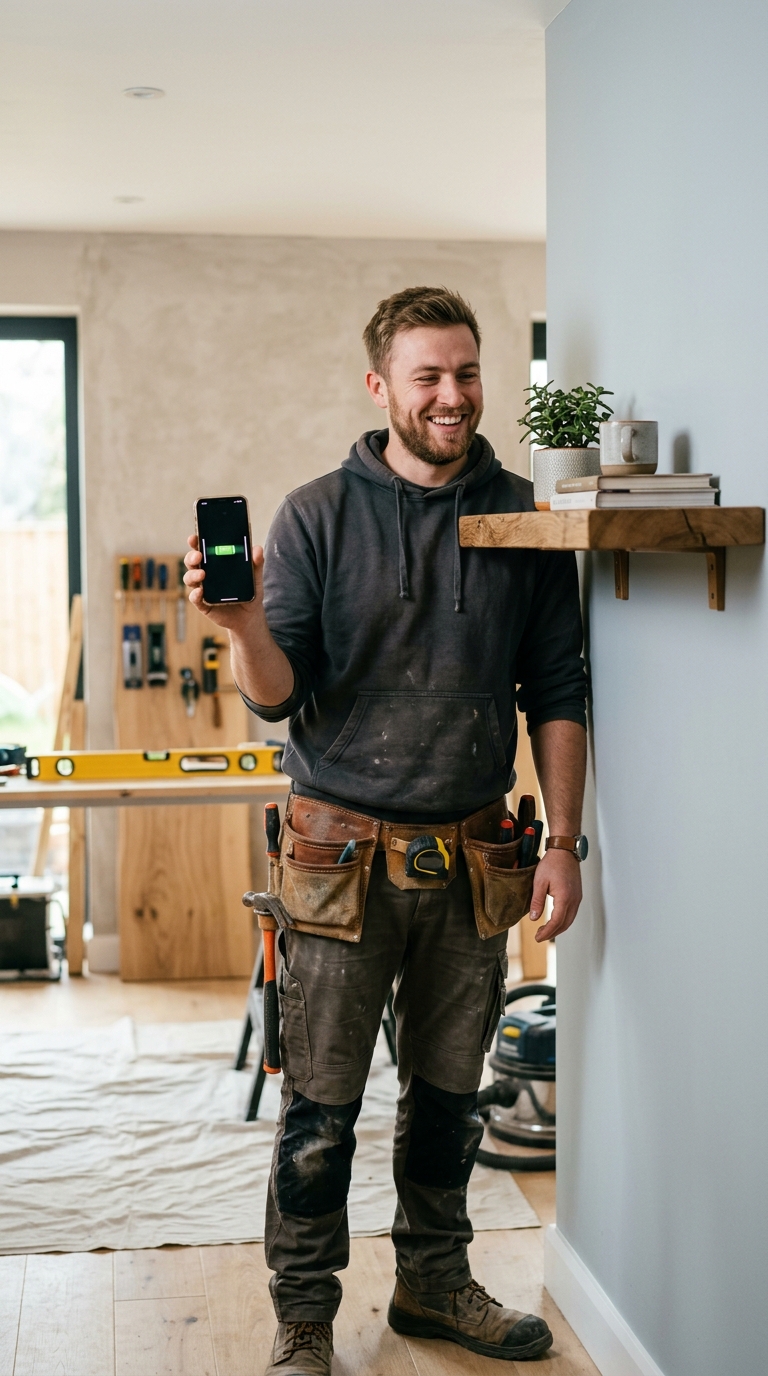
Getting accurate measurements with a spirit level app isn't just about downloading the right tool — it's about using it the right way. Follow the steps in this guide and you've covered everything that separates a reliable reading from a rough guess:
- Download and set up a purpose-built app like LevelPro rather than relying on a basic built-in utility
- Calibrate before every new job using LevelPro's 2-step system so your iPhone's sensors are zeroed to true level
- Choose the right mode — Bullseye for flat horizontal surfaces, Tubular for walls and edges, Target Angle for specific pitches — and use the AR Camera and Hold function in awkward situations
- Apply good measurement habits: stable placement, clean surfaces, reading after the display settles, and verifying critical angles in two orientations
Once these become second nature, you'll get consistent results without second-guessing your readings.
The Payoff Is Visible Work
Hanging a shelf, leveling a washing machine, aligning a camera rig, setting a precise slope in a drainage channel — measurements made correctly the first time mean fewer adjustments, less wasted material, and results you can stand behind. A professional-grade app like LevelPro isn't just about the numbers on screen. It's about knowing those numbers are right.
Want to go deeper on a specific use case? Our guide on the best level app for hanging pictures covers practical tips for getting frames perfectly straight, fast. Still comparing options? The roundup of the best free level app for iPhone gives you a clear picture of what's available.
For now, you have everything you need. Open LevelPro, run your calibration, and take the first measurement.
LevelPro: The Professional Spirit Level App for iPhone
LevelPro is built for people who need accuracy they can trust. Its intelligent 2-step calibration system ensures your iPhone's sensors are zeroed before any job. Choose between Bullseye mode for flat horizontal surfaces or Tubular mode for edges and walls, both rendered in a dark design with neon accents that are easy to read in any lighting. AR Camera mode lets you see the real surface beneath your device, while the Hold function freezes readings when you're in an awkward position. Targeting a specific pitch or slope? Target Angle mode with haptic and audio feedback guides you to the exact angle. An Apple Watch companion delivers real-time measurements on your wrist, hands-free. LevelPro is available via subscription, giving you full access to every professional feature.
Ready to Take Precise Measurements?
Download LevelPro on the App Store and run your first calibration in under a minute. Whether you're hanging a shelf, aligning a camera, or leveling furniture, you'll have a professional-grade instrument right in your pocket.
Frequently Asked Questions
How accurate is a spirit level app on iPhone?
Modern iPhones have highly precise accelerometers, and a well-calibrated spirit level app like LevelPro can achieve accuracy within ±0.1°. Calibration is the key step — skipping it can introduce small but significant errors.
Do I need to calibrate a spirit level app before using it?
Yes. Calibration corrects any sensor offset in your specific iPhone so you get true, reliable readings. LevelPro features an intelligent 2-step calibration system that takes under a minute and makes a measurable difference in accuracy.
Can I use a spirit level app on a wall?
Absolutely. Use Tubular mode in LevelPro to measure vertical surfaces like walls, door frames, and shelves. Hold the phone flat against the surface and read the angle from the tube-style display.
What is the difference between Bullseye and Tubular mode?
Bullseye mode shows a circular bubble and is ideal for flat, horizontal surfaces like tables or floors. Tubular mode displays a horizontal tube bubble best suited for edges, walls, and surfaces measured along a single axis.
Can I set a custom target angle in a spirit level app?
Yes — LevelPro's Target Angle mode lets you dial in any specific angle, and the app uses subtle audio and haptic feedback to alert you when you've hit that exact measurement.
Does a spirit level app work without internet?
Yes. Once downloaded and calibrated, spirit level apps work entirely offline using your phone's built-in sensors. No internet connection is required for measurements.