
The iPhone level tool is generally accurate to within 1–2 degrees under normal conditions, making it reliable for casual DIY tasks. For professional work requiring tighter tolerances, a calibrated digital level app or a dedicated hardware level will deliver more consistent results.
The iPhone's built-in level relies on its internal accelerometer and gyroscope, which are consumer-grade sensors. In ideal conditions — device properly held, sensors recently calibrated, stable surface — readings are typically accurate to ±1°, which is sufficient for hanging pictures, assembling furniture, or basic carpentry. Accuracy degrades, though, with temperature changes, magnetic interference, device age, and poor calibration. For architects, engineers, or builders who need precision below 0.5°, a dedicated app with a multi-step calibration system and professional sensor processing will outperform the stock tool significantly.
Is the iPhone Level Tool Accurate? A Quick Answer Before We Dig In
Pull out your iPhone to check whether a shelf is straight or a surface is flat, and you've probably wondered: is the iPhone level tool accurate enough to actually trust? It's a fair question — one that deserves a real, technical answer.
Short answer: yes, the iPhone level tool is generally accurate to within ±1–2 degrees under normal conditions. For everyday DIY tasks — hanging picture frames, assembling flat-pack furniture, checking a countertop — that range is more than sufficient. But accuracy isn't a fixed number. It shifts based on several real-world factors:
- Sensor calibration — Has your accelerometer drifted since the last calibration?
- Temperature — Extreme heat or cold affects electronic sensor performance
- Magnetic interference — Metal surfaces and nearby electronics can skew readings
- Device condition — A bent chassis or repaired screen can physically tilt the sensor plane
- The app itself — The stock Measure/Compass app has no manual calibration step
Below, we'll break down each of these factors, compare the iPhone level to dedicated hardware tools, and show you how to get the best possible accuracy from your device. Whether you're a weekend DIYer or a professional considering your phone on a job site, the answers here will help you decide when your iPhone is enough — and when it isn't.
What Factors Have the Biggest Impact on iPhone Level Accuracy?
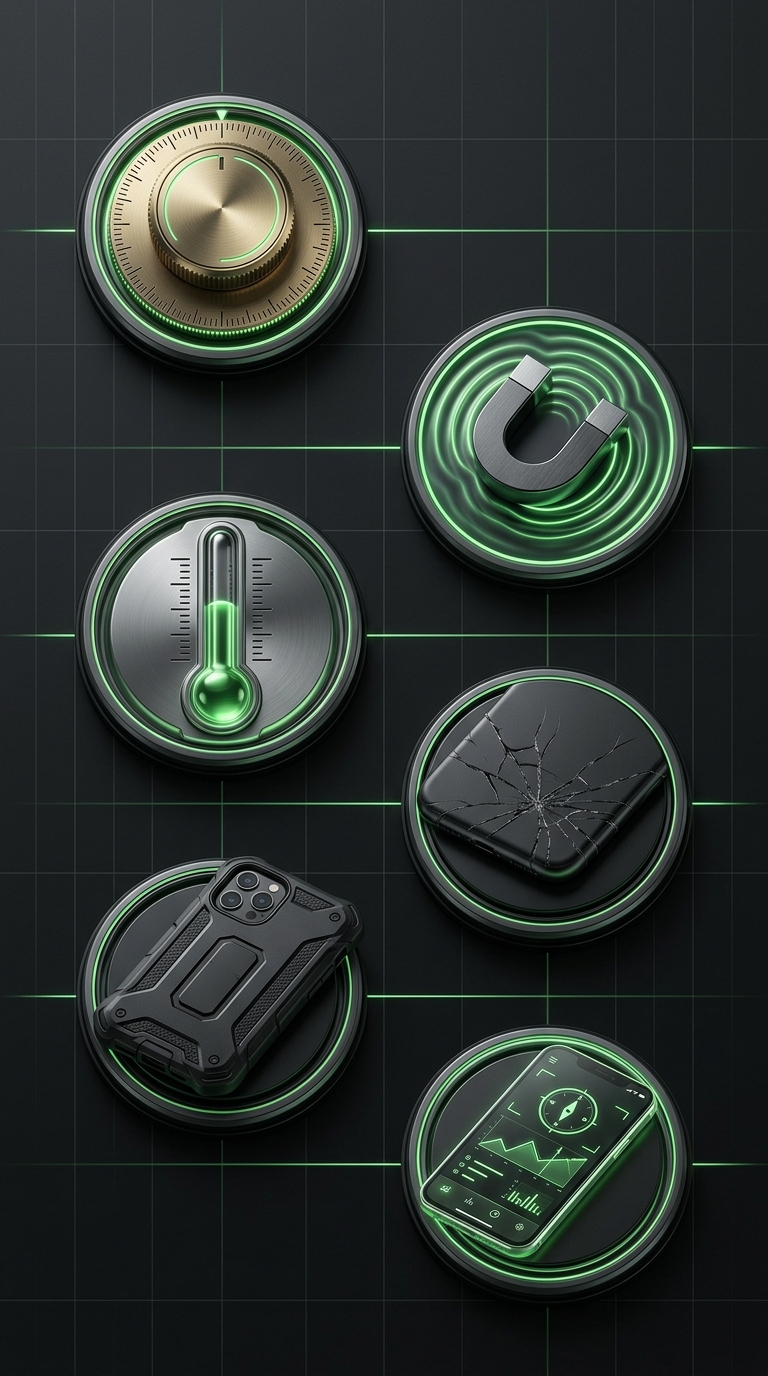
Understanding whether the iPhone level tool is accurate starts with knowing what drives — and undermines — that accuracy in real-world conditions. The sensor hardware inside modern iPhones is genuinely capable, but consumer-grade components are never perfect. Here are the factors that matter most:
1. Sensor Calibration (The #1 Factor)
Calibration is the single most important variable affecting iPhone level accuracy. Your device's accelerometer establishes its sense of "flat" based on factory-set baselines, but those baselines drift over time — particularly after physical impacts, software updates, or hardware repairs. An uncalibrated device can read 0° on a surface that's actually tilted by 1.5°, and you'd never know it.
The built-in Measure app has no manual calibration step, so you're always trusting factory defaults that may have shifted since the device was new. A dedicated level app with a proper 2-step calibration workflow — place the device on a flat surface, record a reading, flip it 180°, record again, average the result — actively eliminates this drift and resets your accuracy baseline.
2. Magnetic and Electromagnetic Interference
The iPhone combines accelerometer data with gyroscope input, and in some measurement contexts the magnetometer (compass chip) also plays a role. Place your iPhone near a speaker, a metal workbench, a refrigerator, or any strong electromagnetic field, and readings can shift noticeably. Always measure away from metal-heavy surfaces when precision matters.
3. Temperature Extremes
Electronic sensors are temperature-sensitive. Cold environments cause components to contract; heat causes expansion. Both affect the precision of the accelerometer's micro-mechanical structure. After working in a cold garage or a sun-baked construction site, give your device 5–10 minutes to acclimate before taking critical readings.
4. Device Condition and Case Thickness
- A bent or warped chassis physically tilts the sensor plane relative to the device surface — there's no software fix for that.
- A thick protective case can introduce a slight angular offset if it doesn't sit perfectly flush on a surface.
- A screen replacement or internal repair can subtly alter the sensor's orientation if components weren't reseated precisely.
5. The App You're Using
Not all level apps are created equal. The stock Measure/Compass app reads raw sensor data with minimal filtering, while a professional-grade app applies sensor fusion algorithms — combining accelerometer and gyroscope data intelligently — to smooth out noise and deliver steadier, more reliable readings. App choice is nearly as important as the hardware itself. For a closer look at how different app types stack up, this comparison of spirit level apps vs bubble level apps is worth reading before you commit to a tool.
Quick Reference: Factor Impact Table
| Factor | Potential Error Introduced | Fixable? |
|---|---|---|
| Uncalibrated sensor | ±1–3° | ✅ Yes — recalibrate |
| Electromagnetic interference | ±0.5–2° | ✅ Yes — move location |
| Temperature extremes | ±0.5–1.5° | ✅ Yes — acclimate device |
| Bent chassis / repair damage | ±1–4° | ❌ Hardware issue |
| Thick case offset | ±0.5–1° | ✅ Yes — remove case |
| Poor app algorithm | ±0.5–2° | ✅ Yes — switch apps |
The takeaway: most accuracy problems are solvable. Identifying which factor applies to your situation — and addressing it before you measure — is what separates a reliable iPhone level reading from an unreliable one.
How Quickly Can You Improve iPhone Level Accuracy?
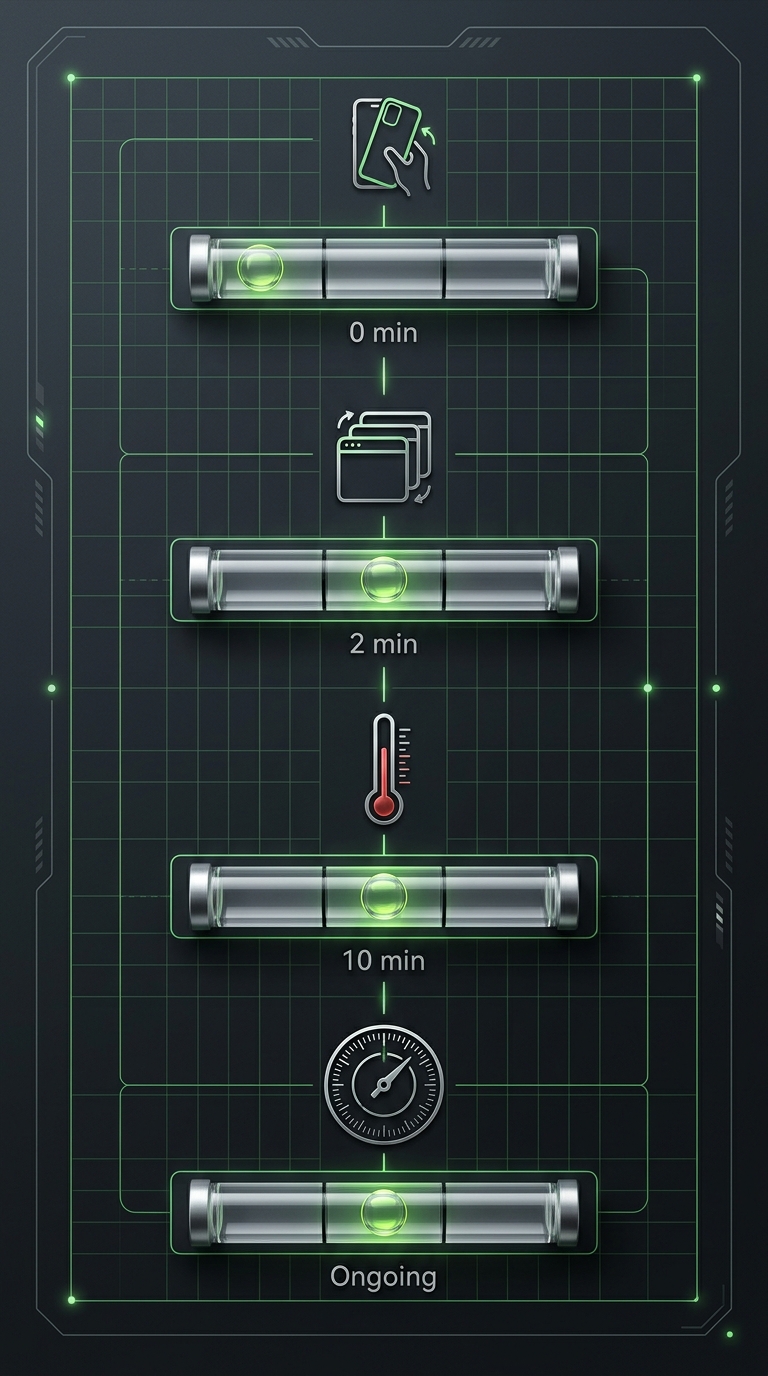
Most iPhone level accuracy problems have fast, practical fixes. New hardware isn't required, and neither is a software update. In many cases, you're just minutes away from a noticeably more reliable reading.
Here's a realistic timeline for the most common improvements:
Immediate Fixes (Under 2 Minutes)
Some accuracy gains are instant:
- Remove your phone case — If your case has uneven edges or a slight lip, removing it eliminates that offset right away.
- Move away from magnetic surfaces — Step back from a metal workbench, refrigerator, or speaker setup, and readings stabilize in real time.
- Switch apps — Moving from the default Measure app to a dedicated level app with sensor fusion takes 60 seconds and can meaningfully reduce reading noise.
5–10 Minutes: Calibration
When your sensor has drifted — common on devices that have been used heavily, dropped, or repaired — a proper calibration reset is the highest-impact fix available. A 2-step calibration process (place flat, record, flip 180°, record, average) takes around five minutes done carefully. For a complete walkthrough, our step-by-step iPhone level calibration guide covers every stage in detail.
After calibration, many users see accuracy improve from ±2° down to ±0.5° — a meaningful shift that makes the difference between a reading you can trust and one you can't.
10–15 Minutes: Temperature Acclimation
Come in from a cold vehicle or a hot outdoor environment, and give your iPhone time to settle at room temperature before taking critical readings. Sensor drift caused by thermal stress typically stabilizes within 10–15 minutes — something that matters on construction sites or outdoor shoots where temperature swings are common.
Ongoing: Habit-Based Accuracy
The biggest long-term accuracy gains come from consistent habits:
- Recalibrate your level app every few months, or after any drop or hardware repair
- Always verify on a known flat surface before starting a new project
- Use the Hold function to freeze readings when you can't keep the phone steady — this prevents false readings from hand movement
- Choose the right mode — Bullseye for horizontal flat surfaces, Tubular for edges and vertical faces
For users who routinely work on leveling tasks — whether hanging shelves, aligning camera equipment, or checking structural surfaces — these habits add up quickly. Within a single project, you'll develop a feel for when a reading is stable versus when something's off.
What You Can Realistically Expect
| Timeframe | Action | Expected Accuracy Gain |
|---|---|---|
| Instant | Remove case, move from interference | ±0.5–1° improvement |
| 2 minutes | Switch to a dedicated level app | ±0.5–1.5° improvement |
| 5–10 minutes | Run 2-step calibration | ±1–2° improvement |
| 10–15 minutes | Allow device to acclimate to temperature | ±0.5–1° improvement |
| Ongoing | Consistent recalibration habit | Sustained accuracy within ±0.5° |
Asking "is the iPhone level tool accurate?" is really asking whether you've given it the conditions to perform well. The hardware capability is there. With the right app, a proper calibration, and a few consistent habits, most users can push their iPhone level accuracy from "good enough" to genuinely reliable — without spending anything on additional hardware.
So, Is the iPhone Level Tool Accurate Enough? The Final Verdict
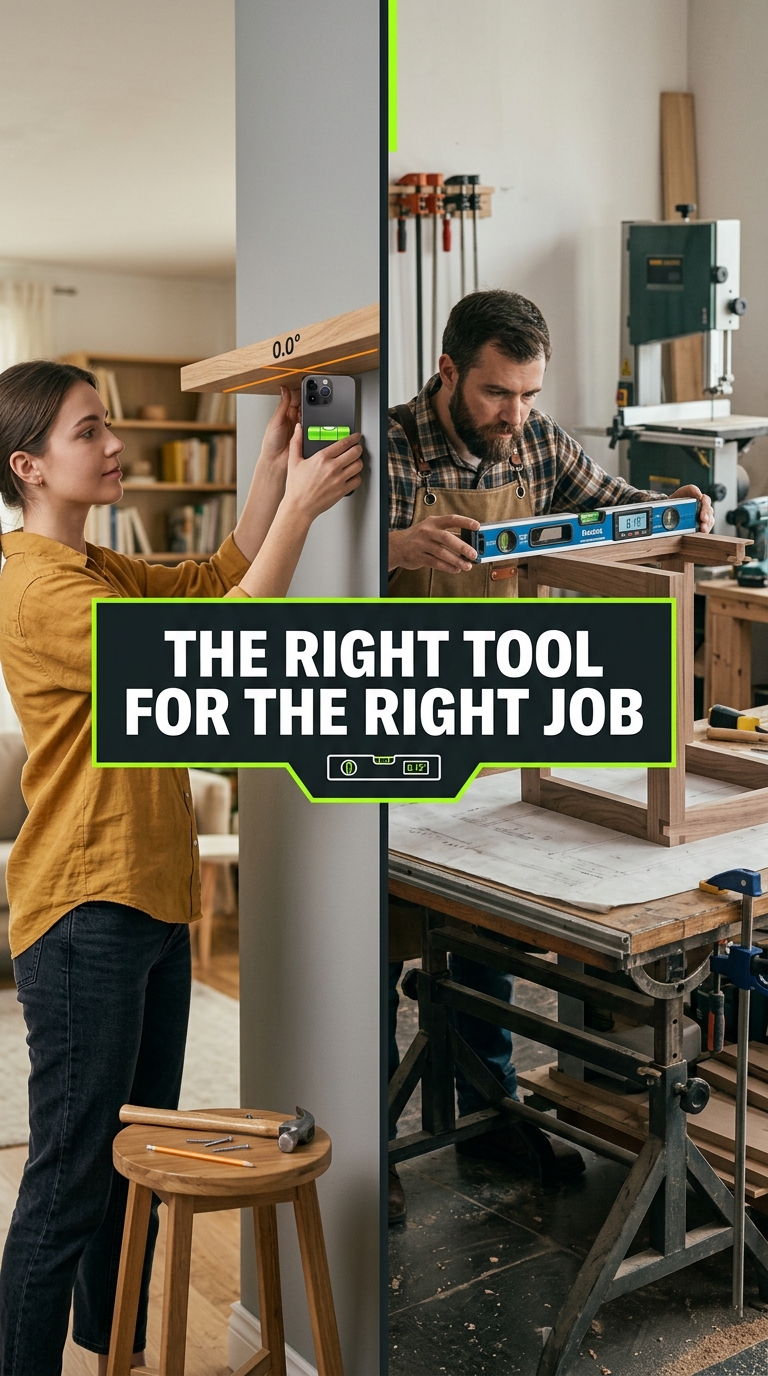
After breaking down the science, the limiting factors, and the practical fixes, the answer to is the iPhone level tool accurate comes down to a simple framework: accurate enough for what?
For casual DIY and everyday tasks — yes. Hanging picture frames, checking furniture assembly, verifying a countertop is roughly flat, setting up a camera: the stock iPhone level performs well within the ±1–2° range these tasks require.
For professional work requiring tolerances below 0.5° — it depends on your setup. Modern iPhone hardware is capable of real precision, but the default Measure app doesn't get you there. Without a calibrated workflow, sensor fusion filtering, and the right mode for your surface type, you're leaving accuracy on the table. A dedicated level app with a proper 2-step calibration process closes that gap significantly.
For safety-critical structural measurements — use certified hardware. No smartphone app should replace a certified instrument when the stakes involve structural integrity, load-bearing installations, or regulatory compliance.
The Practical Takeaway
Here's what to carry from this guide:
- Calibration is everything. An uncalibrated iPhone level can be off by 1–3° without any visible warning. Recalibrate regularly, especially after drops or repairs.
- The app matters as much as the hardware. Sensor fusion, smart filtering, and proper modes make a measurable difference in real-world accuracy.
- Most accuracy problems are fixable in under 10 minutes — remove your case, move from interference, acclimate to temperature, run a calibration.
- Know your tolerance requirements before you measure. DIY tasks and professional installs have different standards, and your tool choice should reflect that.
Ready to push your iPhone level accuracy as far as it can go? Start with understanding how to use a spirit level app properly — good technique compounds the benefits of good hardware. And if you want to understand how digital levels compare to their physical counterparts before committing to a workflow, the spirit level app vs bubble level app comparison is a useful next read.
With the right app, the right habits, and a clear understanding of its limits, your iPhone will serve you well — on site, in the studio, and everywhere in between.
LevelPro: Built for Accuracy the iPhone Stock Tool Can't Match
LevelPro addresses the core weaknesses of the iPhone's built-in level with a thoughtfully designed feature set aimed at professionals and precision-focused users. Its intelligent 2-step calibration system actively corrects for sensor drift and placement error, so you're always starting from a verified baseline. Two dedicated modes — Bullseye for flat surfaces and Tubular for edges and vertical faces — give you the right tool for each measurement scenario. Target Angle mode lets you dial in a specific angle and receive subtle audio and haptic feedback the moment you hit it, removing guesswork entirely. The Hold function freezes your reading in awkward positions where you can't watch the screen, and AR Camera mode overlays live level data onto the real surface through your iPhone camera. Need real-time readings away from the phone? The Apple Watch companion streams measurements directly to your wrist. LevelPro is available through an active subscription, giving you access to every feature without compromise.
See What a Properly Calibrated Level App Can Do
If you've been relying on the stock iPhone level and noticing inconsistent results, try LevelPro. Run the 2-step calibration, switch between Bullseye and Tubular modes, and see what a professionally designed level app delivers — whether you're aligning a camera rig, hanging cabinetry, or checking a structural surface on site.
Frequently Asked Questions
How accurate is the iPhone's built-in level tool?
Typically accurate to within ±1–2 degrees under ideal conditions, the built-in iPhone level uses the device's accelerometer and gyroscope — high-quality consumer sensors, but not laboratory-grade. For most everyday tasks like hanging shelves or checking if a surface is roughly flat, that accuracy is perfectly adequate.
What factors affect iPhone level accuracy?
Several factors can reduce accuracy: an uncalibrated sensor, temperature extremes, nearby magnetic fields (from speakers or electronic equipment), a cracked or bent device chassis, a protective case that tilts the phone slightly, and software bugs. Keeping your device updated and periodically recalibrating your level app will help maintain accuracy.
Is the iPhone level accurate enough for professional use?
For most professional tasks, the stock iPhone level falls short. Architects, structural engineers, and precision woodworkers often need tolerances of 0.1° or better. A dedicated level app with a thorough calibration system and advanced sensor filtering can push the iPhone closer to professional-grade accuracy, but a certified hardware level remains the most reliable option for critical measurements.
How can I improve the accuracy of my iPhone level?
To get the best results: (1) Calibrate your level app on a known flat surface before use. (2) Avoid metal surfaces or areas with strong electromagnetic fields. (3) Keep your iPhone at room temperature. (4) Use a high-quality level app with a multi-step calibration process rather than the default Compass/Measure app. (5) Use the Hold function to freeze a reading so you can reposition without losing the measurement.
How does a level app compare to a traditional bubble level?
A traditional spirit bubble level, when high-quality and properly maintained, can match or exceed iPhone accuracy — often rated at ±0.5mm/m or better. The iPhone level's advantages lie in versatility: it can measure angles, work in AR mode to overlay readings on real surfaces, and connect to accessories like an Apple Watch. For rough leveling and versatility, the iPhone is a strong choice. For single-axis precision on a job site, a quality physical level still holds the edge.
Does the iPhone level stay accurate over time?
Sensor drift is a real concern. Over months and years, accelerometer readings can shift slightly from their factory baseline, especially after physical impacts or hardware repairs. That's why periodic recalibration within your level app matters. Apps that offer a dedicated calibration workflow — placing the device on a flat surface, flipping it, and averaging the readings — correct for sensor drift far more reliably than apps with no calibration step at all.