
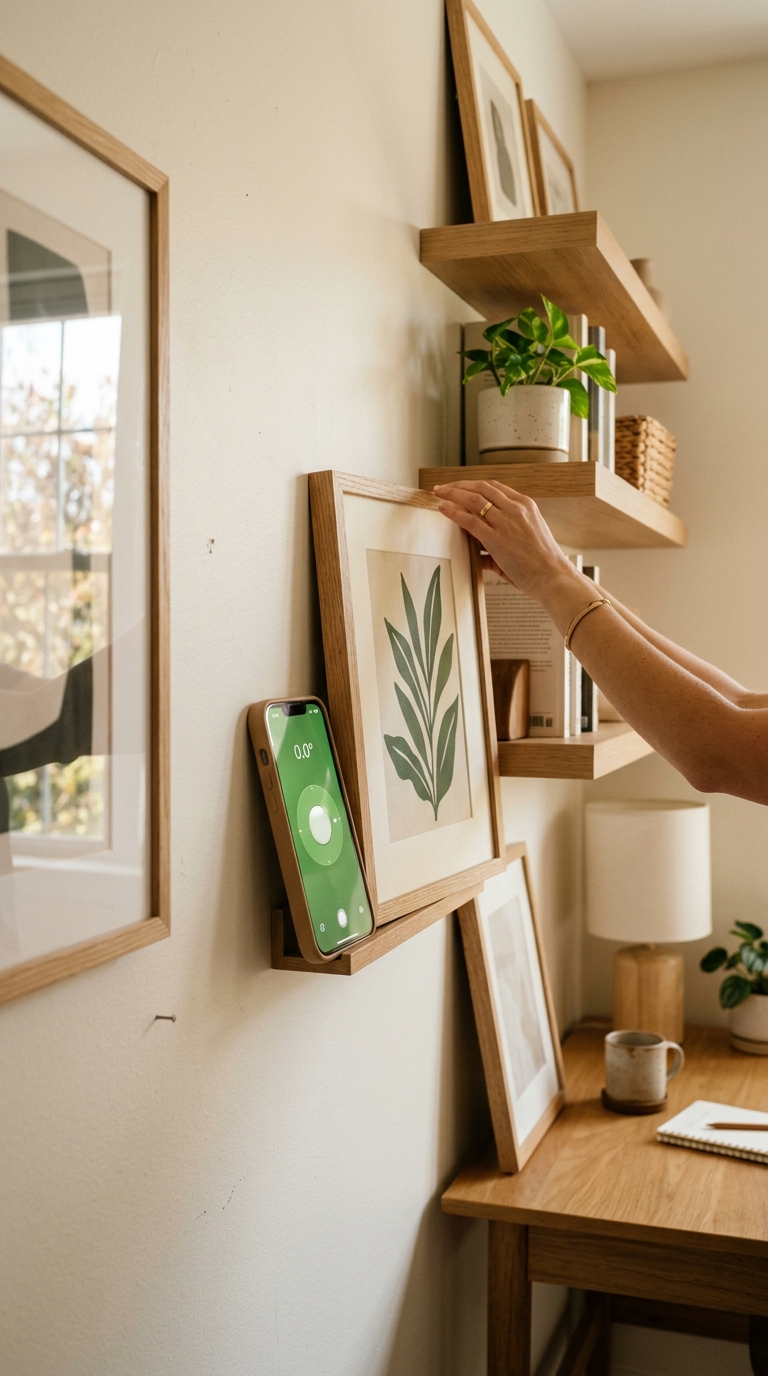
To level picture frames and shelves with your iPhone, download a digital spirit level app like LevelPro, place your iPhone against the frame or shelf edge, and adjust until the reading hits 0°. It takes under a minute and delivers professional accuracy.
Leveling picture frames and shelves with your iPhone is precise and fast. Using a professional spirit level app, you switch to Tubular mode and place your iPhone flat against the edge of the shelf or the top of the frame. The app reads the tilt angle in real time — you simply nudge the item left or right until the display shows 0.0°. For tricky spots or hanging frames where you can't hold the phone steady, the Hold function freezes the last reading so you can step back and check. Calibrating the app first ensures the measurement is true to your surface, not to any factory variance in your iPhone's sensors.
Why Your iPhone Is the Only Level You Need for Frames and Shelves
There's a particular kind of frustration that comes with stepping back to admire a freshly hung picture frame — only to notice it's tilting ever so slightly to the left. Or mounting a floating shelf, filling it with books, and realizing everything is slowly sliding toward one end. If you've been there, you're not alone.
Learning how to level picture frames and shelves with iPhone is one of the quickest home improvement skills you can pick up — and once you do, you'll rarely reach for a traditional bubble level again.
Your iPhone is already a capable measuring instrument. Thanks to highly sensitive accelerometers built into every modern iPhone, it can detect tilt angles to within 0.1° — precise enough for hanging artwork straight and mounting shelves that hold their line. All you need is the right app.
In this step-by-step tutorial, you'll learn:
- How to choose and set up a professional spirit level app on your iPhone
- How to calibrate your device for true accuracy
- Which mode to use for picture frames versus shelves
- Tips for tricky hanging situations, like large gallery walls or high-mounted shelves
Whether you're a first-time DIYer hanging a single frame or tackling a full gallery wall installation, your iPhone — paired with a precision level app like LevelPro — gives you professional-grade accuracy in a tool that fits in your pocket.
Step 1: Download, Install, and Calibrate Your iPhone Level App
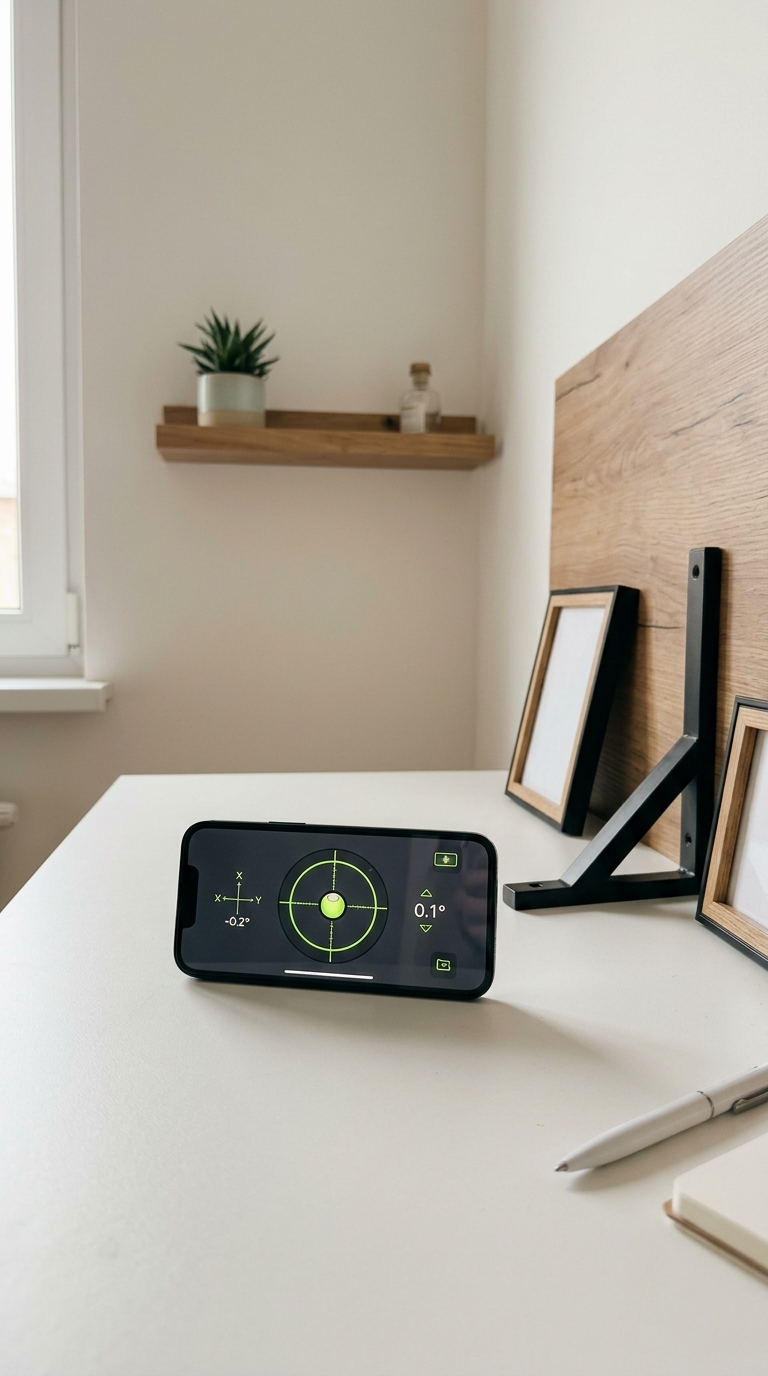
Before you touch a single frame or shelf bracket, spending two minutes on proper setup will make every measurement genuinely trustworthy. Skipping this step means even the best app can return readings that are slightly off — and slightly off is still wrong.
What You'll Need
- Your iPhone (any model with an accelerometer — that's every iPhone made in the last decade)
- A spirit level app — LevelPro is recommended for its precision calibration and dual measurement modes
- A flat, confirmed-level reference surface (more on this below)
- 2–3 minutes of prep time
Download and Open LevelPro
Head to the App Store and download LevelPro. Once installed, open the app and start your subscription to unlock all features — including the calibration system, Bullseye mode, Tubular mode, and the Hold function you'll rely on during the hanging process.
Why Calibration Matters
Here's something most people don't realize: every iPhone's accelerometer has a slight factory offset. It's small — sometimes just a fraction of a degree — but when you're trying to get a picture frame or shelf perfectly horizontal, that fraction is exactly the difference between "straight" and "close enough."
Want to understand how much this affects real-world results? This deep-dive on iPhone level tool accuracy is worth reading before you start.
How to Calibrate in LevelPro (2-Step Process)
💡 Tip: Calibrate on the same day you plan to hang frames or mount shelves. Temperature changes can subtly affect sensor readings, so a fresh calibration always gives you the most accurate baseline.
Choose Your Mode
With LevelPro calibrated and open, take a moment to familiarize yourself with the two modes you'll switch between:
- Bullseye mode — measures tilt on both axes simultaneously. Best for flat surfaces like checking a shelf's top face before drilling.
- Tubular mode — measures tilt along a single axis. Best for running along the edge of a picture frame or shelf to confirm it's perfectly horizontal.
For a broader look at what a spirit level tool can do beyond frames and shelves, the complete guide to what a spirit level is used for covers the full range of applications.
Once your app is calibrated and you know which mode to reach for, you're ready to start measuring. The actual leveling process — for both frames and shelves — is faster than you'd expect.
Step 2: Level Your Picture Frames and Shelves with Precision
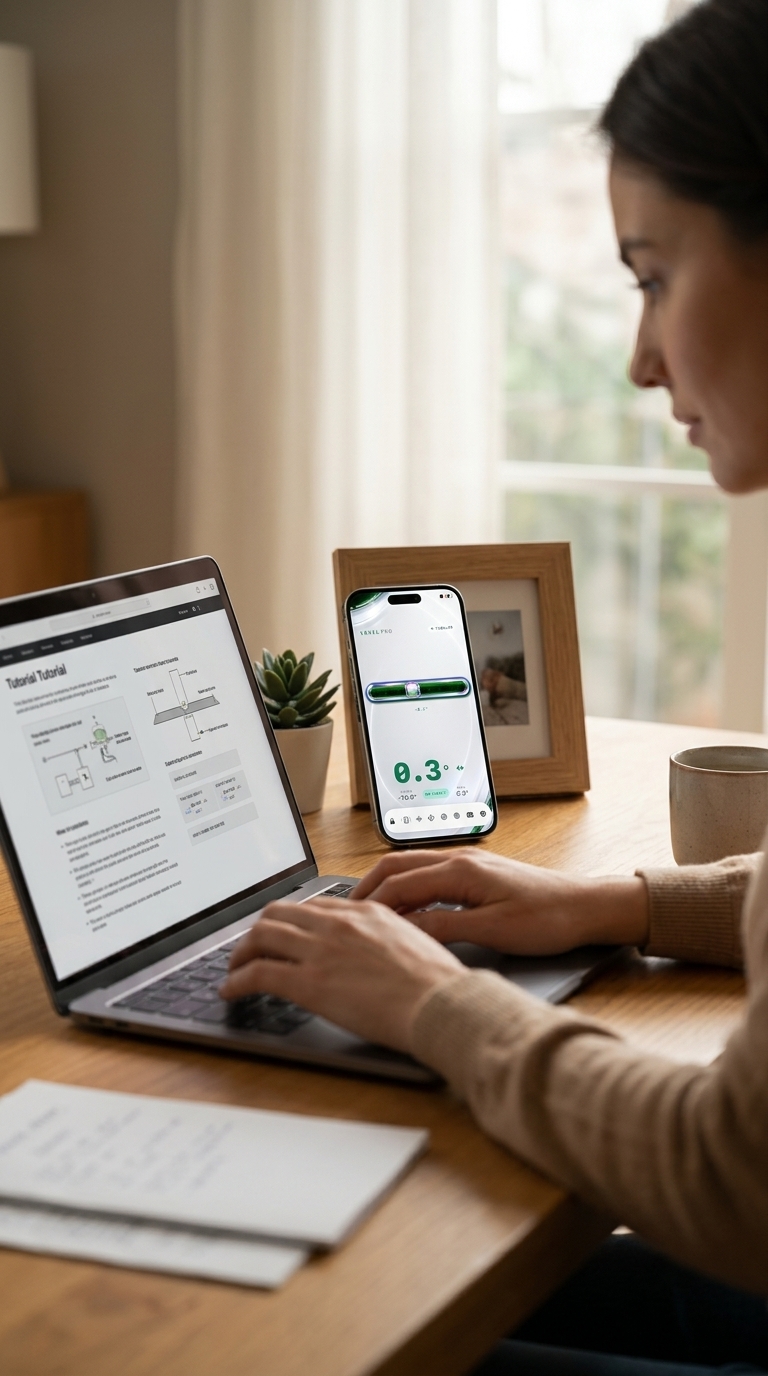
With your app calibrated and your modes mapped out, it's time for the satisfying part: actually getting everything perfectly straight. Here's exactly how to level picture frames and shelves with your iPhone — broken down by task so you can follow along in real time.
---
Leveling a Picture Frame
1. Hang the frame loosely first.
Drive your nail or hook into the wall and hang the frame before you start measuring. Trying to hold a frame in position with one hand while reading your phone with the other is awkward and inaccurate. Let the frame hang freely from the wall.
2. Switch to Tubular mode in LevelPro.
Tubular mode measures tilt along a single horizontal axis — exactly what you need to confirm the top edge of a frame is perfectly level. Open LevelPro and tap to select Tubular mode.
3. Place your iPhone along the top edge of the frame.
Hold your iPhone flat against the top edge, keeping it parallel to the frame's surface. You'll immediately see a live angle reading. A perfectly level frame reads 0.0°.
4. Nudge the frame until the reading hits 0.0°.
With your free hand, gently rotate the frame left or right on its hook. Watch the degree reading tick toward zero. When you hit 0.0°, the frame is perfectly level. If you're hanging a large frame and need both hands, use the Hold function — tap it before you remove your iPhone and the last reading freezes on screen so you can check without the number changing.
5. Press gently and confirm.
Once the frame reads 0.0°, press it lightly against the wall to settle it into position, then re-check with the iPhone one more time. Done.
---
Leveling a Shelf Before Drilling
Shelves require a slightly different approach because you're setting bracket positions before the shelf goes up — mistakes here mean filling holes and re-drilling. This is where your iPhone really earns its keep.
1. Mark your bracket positions lightly with pencil.
Using a tape measure, mark where you want the left and right brackets to go. Keep these marks light, since you may need to adjust.
2. Hold your iPhone along your pencil marks.
Using a long spirit level or a straight piece of timber as a guide, rest your iPhone on top and switch to Tubular mode. You'll get a live reading across the full span between your bracket marks.
💡 Tip: No straight edge? Rest your iPhone directly on the shelf (if you're doing a test fit) or along your ruler. The reading is the same.
3. Adjust your marks until you read 0.0°.
If the reading shows a tilt — say, 1.2° — nudge the lower mark up fractionally and re-check. Repeat until your reference line reads 0.0°, then drill.
4. Use Bullseye mode to check the shelf face after mounting.
Once the shelf is up and brackets are secured, place your iPhone flat on the shelf surface and switch to Bullseye mode. Both axes get checked at once — confirming the shelf is level front-to-back as well as left-to-right. Both bubble indicators should sit dead center.
For a more detailed walkthrough on the full shelf-hanging process — including stud finding and weight considerations — the step-by-step guide to using a level tool for hanging shelves covers everything from wall prep to the final check.
---
Handling Tricky Situations
- Gallery walls: Work left to right or top to bottom. Level each frame individually using Tubular mode, and use the Hold function frequently so you're not juggling the phone while repositioning art.
- High shelves you can't see easily: Set your Target Angle to 0.0° in LevelPro and enable haptic feedback — the phone buzzes the moment you hit level, so you don't need to watch the screen at all.
- Frames with no flat top edge (ornate or round frames): Hold a small straight edge or piece of card across the top of the frame as a temporary flat reference surface, then measure against that.
If you want to go deeper on reading tilt angles and understanding what the degree values actually mean, this guide on how to read bubble level degrees accurately is a useful reference to keep open alongside your app.
Your iPhone Is Now Your Most Useful Hanging Tool

Learning how to level picture frames and shelves with iPhone is one of those small skills that pays off every time you rearrange a room, move into a new home, or finally tackle that gallery wall you've been putting off. The whole process — calibrate, choose your mode, measure, adjust, confirm — takes less time than hunting through a toolbox for a traditional bubble level you may or may not be able to trust.
To recap what you've covered:
- Calibrate first — LevelPro's 2-step calibration corrects your iPhone's sensor offset so your 0.0° reading is true level, every time
- Use Tubular mode for edges: the top of a picture frame, the front rail of a shelf, or the line between two bracket marks
- Use Bullseye mode for flat surfaces: the face of a mounted shelf, a TV mount plate, or any item where tilt on two axes matters
- Use the Hold function when you need both hands on the frame or can't see the screen clearly
- Set a Target Angle with haptic feedback when precision matters and you don't want to watch the display at all
The difference between a 0.0° reading and "looks about right" is the difference between a room that feels polished and one that subtly nags at you. Your iPhone, properly calibrated and running a professional level app, removes the guesswork entirely.
Want to keep building your measurement toolkit? The best level app for hanging pictures roundup covers how LevelPro compares to other options in detail — useful if you're recommending tools to others or evaluating alternatives. For bigger projects beyond frames and shelves, how to use a spirit level app step-by-step walks through the full range of professional applications your iPhone can handle.
One last tip: once you've completed a hanging session, save your calibration. LevelPro retains it between sessions, so next time you open the app you're ready to measure immediately — no setup required.
Download LevelPro, run the calibration, and hang something perfectly straight today.
LevelPro: The Precision Level App Built for Exactly This
LevelPro is a premium digital spirit level for iPhone and iPad designed for people who want genuinely accurate results. For leveling picture frames, Tubular mode gives you a clean real-time horizontal reading along the frame's top edge — nudge until it reads 0.0° and you're done. For shelves and flat surfaces, Bullseye mode shows tilt on both axes simultaneously. Before you start, the 2-step calibration system ensures your iPhone's sensor is true to real-world level, not factory defaults. Working in a tight spot or holding a large frame with both hands? The Hold function freezes the reading the moment you lift the phone. You can also set a Target Angle for intentionally tilted display shelves and get audio and haptic feedback the instant you hit the exact degree you want. LevelPro is available via subscription, which unlocks every feature — Bullseye, Tubular, AR Camera, Apple Watch companion, Hold, calibration, and multiple measurement units — across all your Apple devices.
Ready to Hang Everything Perfectly Straight?
Download LevelPro on the App Store and run the 2-step calibration before your next hanging project. Whether you're mounting a single frame or installing a full gallery wall, having a professional-grade level in your pocket means no more re-drilling, no more tilted shelves, and no more second-guessing your eye.
Frequently Asked Questions
Is the iPhone accurate enough to level picture frames and shelves?
Yes. Modern iPhones have highly sensitive accelerometers that, when used with a calibrated spirit level app, can measure tilt to within 0.1°. That's more than accurate enough for hanging frames and mounting shelves perfectly straight.
What mode should I use to level a shelf edge with my iPhone?
Use Tubular mode (also called Edge or Horizontal mode). It measures the tilt along a single axis, which is ideal for checking whether a shelf or the top edge of a picture frame is perfectly horizontal.
Do I need to calibrate my iPhone before leveling frames or shelves?
Yes, and it only takes seconds. Calibration corrects for any sensor offset in your specific device, so your 0° reading is truly level — not just level relative to a potentially miscalibrated sensor.
Can I use my iPhone to check if a wall shelf is level before drilling?
Absolutely. Hold your iPhone along the shelf or use a straight edge as a guide, check the angle in your spirit level app, and adjust your pencil marks before drilling. It prevents costly mistakes.
What's the Hold function in a spirit level app and why is it useful for hanging frames?
Hold freezes the angle reading on screen so you can remove your iPhone from the frame, step back, and read the measurement without the number changing. It's especially handy when you can't see the screen while positioning a large frame.
Does LevelPro work for both picture frames and shelves?
Yes. LevelPro offers both Bullseye mode for flat surfaces and Tubular mode for edges, making it suitable for leveling picture frames, floating shelves, TV mounts, cabinets, and more.